Backups give you a restore point before updates, wipes, mod changes, map changes, or large config edits. Restoring a backup replaces the current server files with the selected backup.

  1. Open your ARK server in the control panel.
  2. To create a backup, click Backup Server and confirm the script.
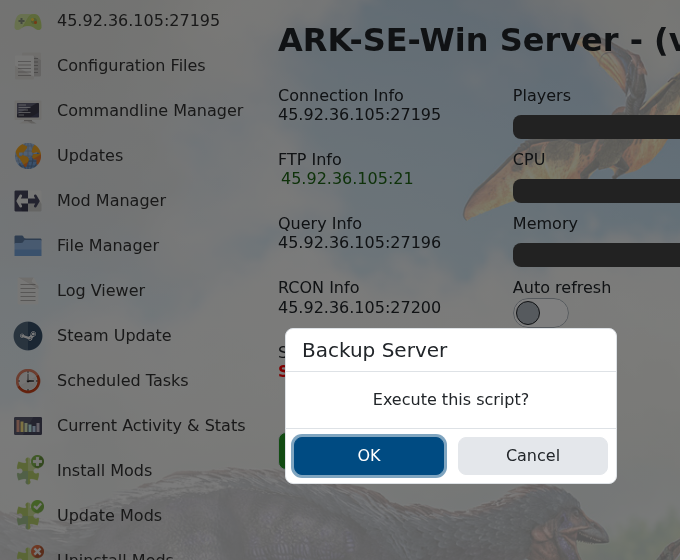
    ARK Backup Server confirmation

  3. Wait for the backup task to finish before making changes.
  4. To restore a backup, stop the server first.
  5. Click Restore Backup.
  6. Select the backup you want to restore, confirm the restore, then wait for it to finish.
  7. Start the server and check that the expected world/player data has restored.

Keep backups before destructive work. If you are unsure which backup to restore, submit a support ticket before overwriting the current files.

  • backup, restore, restore, restore, world, world, player, data
  • 71 Users Found This Useful
Was this answer helpful?

Related Articles

Updating to the latest ARK patch

Use Steam Update when ARK releases a server update. Take a backup first if you are also changing...

How to run ARK ScorchedEarth DLC on your server

Scorched Earth changes the server into ARK's desert-focused DLC map, with heat, storms,...

ARK cross-server gateway travel using multiple servers in a cluster

Note: for servers purchased before 16/09/2016 (16th September 2016) please send in a support...

How to disable Battleye on an ARK server

BattlEye can be disabled from the ARK server startup options when you need to troubleshoot...

How to upload a single player world onto your ARK server

You can upload an ARK single-player save by copying the local save files from your PC into the...