Use a custom command line when you need to change ARK startup options without editing the default command line for every service. This is useful for map changes, launch parameters, and server options that are exposed in the TCAdmin command-line editor.
Create the command line
- Open your ARK server in the control panel.
- Click Custom Command Lines.
- Click New.
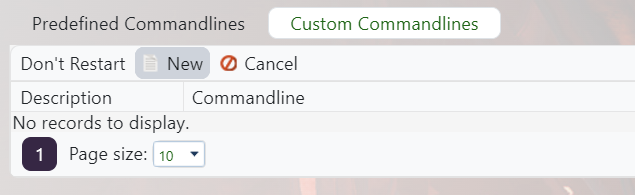
Choose the options to override
- Tick the box beside each option you want this custom command line to control.
- Enter the value for each enabled option in the field on the right.
- Leave options unticked if you want them to keep using the default command line value.
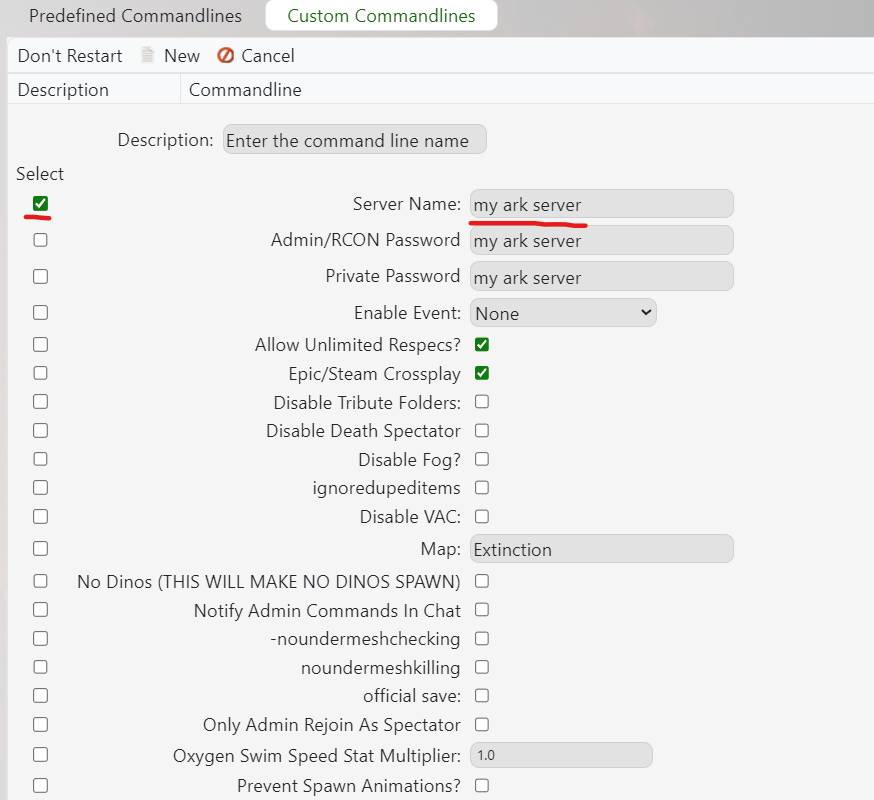
Save and select it
- Enter a clear name in the Description box, such as the map or setup this command line is for.
- Click Save.
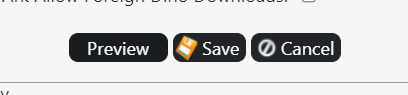
- Find the command line you just created and click Select.
- Restart the server so ARK starts with the selected command line.

Before changing live servers
- Run a backup before changing maps or launch options that could affect saved data.
- Change one group of options at a time so it is easier to find mistakes.
- If the server will not start, switch back to the previous command line and check the latest console output.
- If you are unsure which value to use, submit a support ticket before applying it to a live server.
