The Volcano is installed as Workshop content, then selected from the ARK startup options using the map name required by the map author. The Volcano is a Workshop map, so this guide uses the exact Workshop ID and map value instead of leaving you to guess which value goes in each panel screen.
- Back up first so you can return to the previous world if The Volcano is not the map you want: Backing up and restoring world and player data on your ARK server.
- On Steam Workshop, copy The Volcano Workshop ID:
715028562. - The command-line map value for this example is
TheVolcano. Keep the spelling and capitalisation as shown. - Open Install Mods, enter
715028562, and click Execute.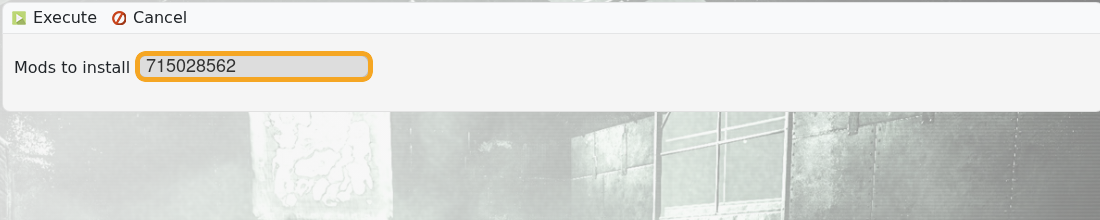
- Do not restart yet; wait until the mod install task has finished.
- Open Commandline Manager and create or edit the profile you want to use for The Volcano: Creating a custom command line on your ARK server.
- Enable Map and set it to
TheVolcano.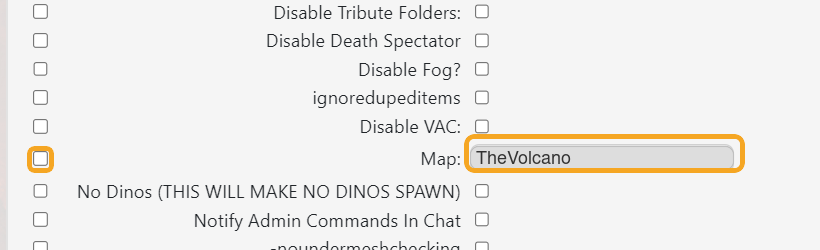
- Save, select that command line, then restart the server.
If The Volcano does not load, re-check the Workshop page for changed map names or extra requirements before changing other server files.
