Thieves Island is installed as Workshop content, then selected from the ARK startup options using the map name required by the map author. Thieves Island uses a Workshop download plus the shorter map value Thieves in the command line. Both values need to be correct or the server can install the files but still boot another map.
- Back up the current ARK save before installing Thieves Island: Backing up and restoring world and player data on your ARK server.
- Copy the Thieves Island Workshop ID,
651147582, from the Steam Workshop URL. - Thieves Island uses
Thievesas the command-line map value, which is shorter than the article title. - In Install Mods, enter
651147582and run the install.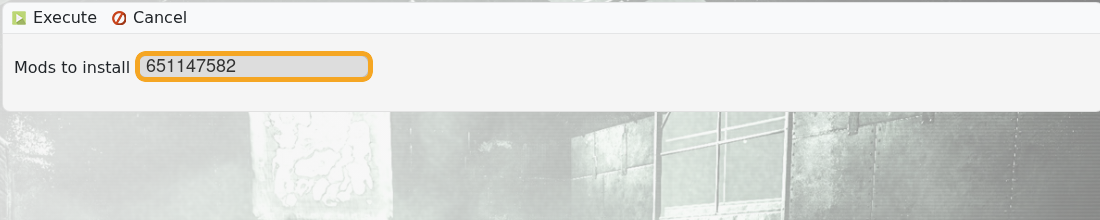
- Wait for the server to finish downloading the Workshop content.
- Open Commandline Manager and prepare the command line that should launch Thieves Island: Creating a custom command line on your ARK server.
- Tick Map and enter
Thieves.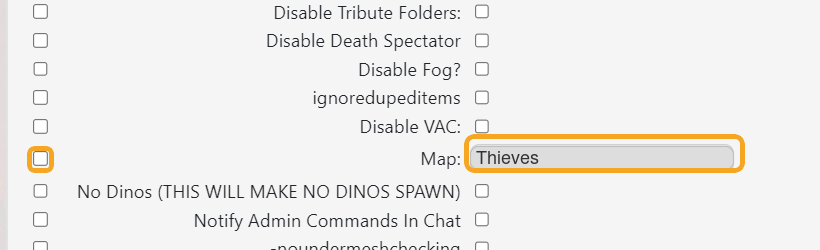
- Save, select, and restart the server.
The common mistake with Thieves Island is using the map title instead of the map value. The command line should use Thieves.
