Create a backup before changing gameplay settings, replacing a world or updating the server. A live restore test recovered both Engine.ini and GameXishu.json byte for byte.
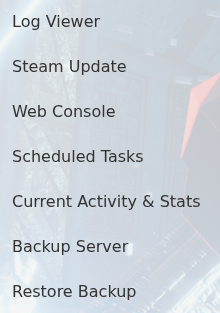
- Stop the server, open More and click Backup Server.
- Confirm the action and wait for the backup task to finish.
To restore, leave the service stopped, open Restore Backup, select the required dated archive, tick Are you sure? and click Execute.

When the task finishes, start the server and join it. Confirm the expected world and settings before deleting any newer backup. Keep an independent FTP copy of WS/Saved before a major migration even when panel backups are working.
