Making your Vein Server private and removing it from the Public listings
VEIN is a post-apocalyptic survival multiplayer sandbox game. In the near future, the apocalypse has occurred: hostile zombies roam the Earth, most people have died, and society has collapsed. You are a survivor. Gather supplies to survive, explore abandoned buildings, combat bandits, defend your home, and rebuild society with friends.
Why you may want to remove your server from being listed as Public
Vein does have the ability to add a password so only you and your friends can join. There is also an added option where you can make your server completely private and stop it shown in the listing in game. This stops anyone from being able to join your server unless they know the IP and port to connect to it. Removing your server from the public listings will help to reduce griefing and keep your game private with your friends or gaming community.
Guide to taking your server off the Public Listings:
- Login to your TCAdmin control panel:
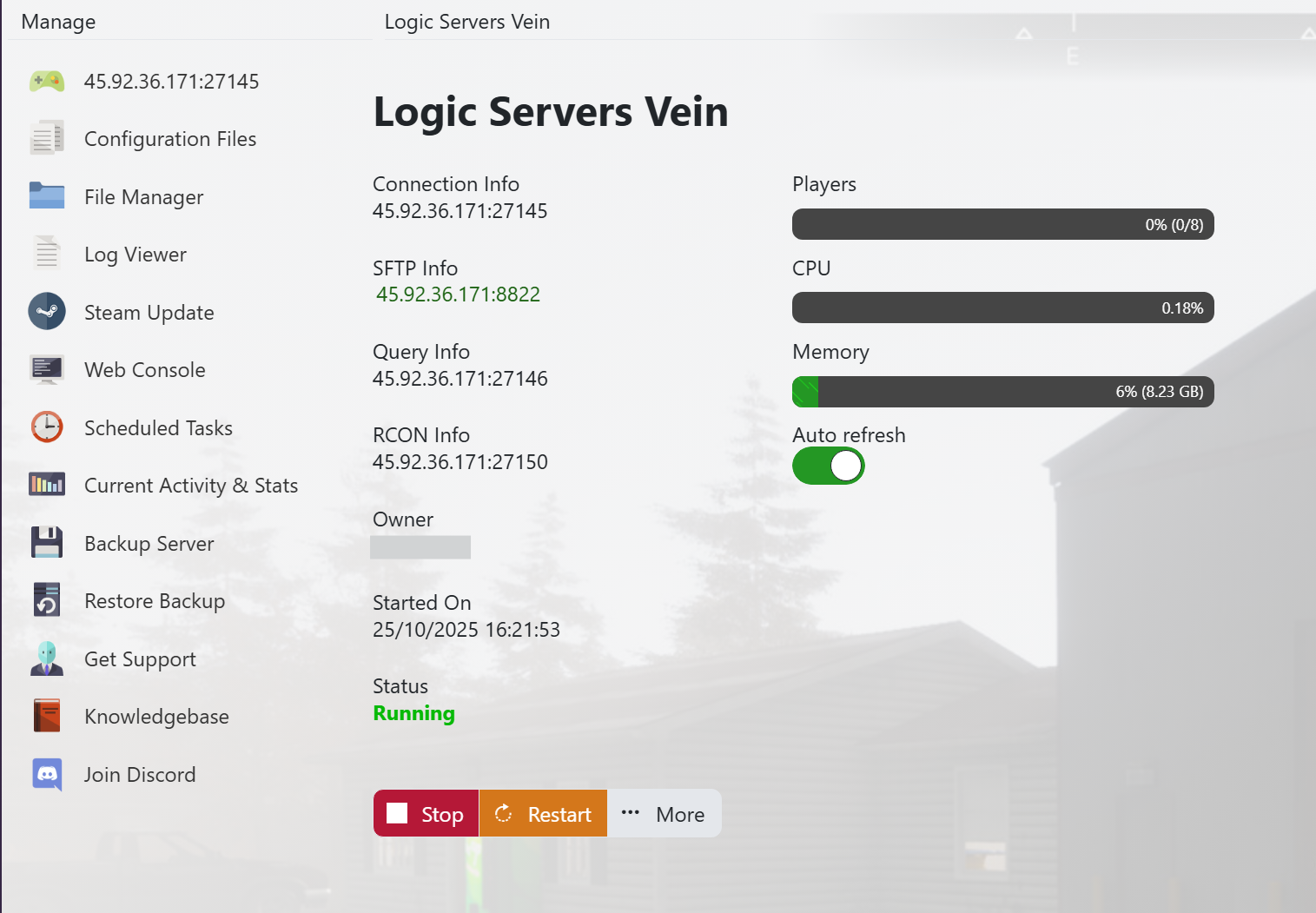
- When you purchased your Vein server with us you will have been sent your login details via email. Use those details to login to your TCAdmin control panel. When you are logged into your panel you will see various options available to you. From here you can control your server.
- If you do not have a server with us you can get one here - https://logicservers.com/game-servers/vein
- Stop your server:

- You will need to stop your server before you make any changes. Press the STOP button on your panel and wait until the server closes down.
- Manually backup your server:

- It's always a good idea to backup your server before you make any changes. Simply press the backup button located on the left hand menu as shown in the image. This will backup your server’s save files and config.
Our system will pack up all your server’s save files and keep them safe on our remote backup service, just to be extra safe.
- Open up your servers Configuration Files menu:

- Click on the ‘Configuration Files’ button on the left hand menu on your server panel.
- Open up the Config Editor:

- Click on the ‘Config Editor’ button next to the ‘Game.ini’.
- Switching off the ‘Public Server’ setting:
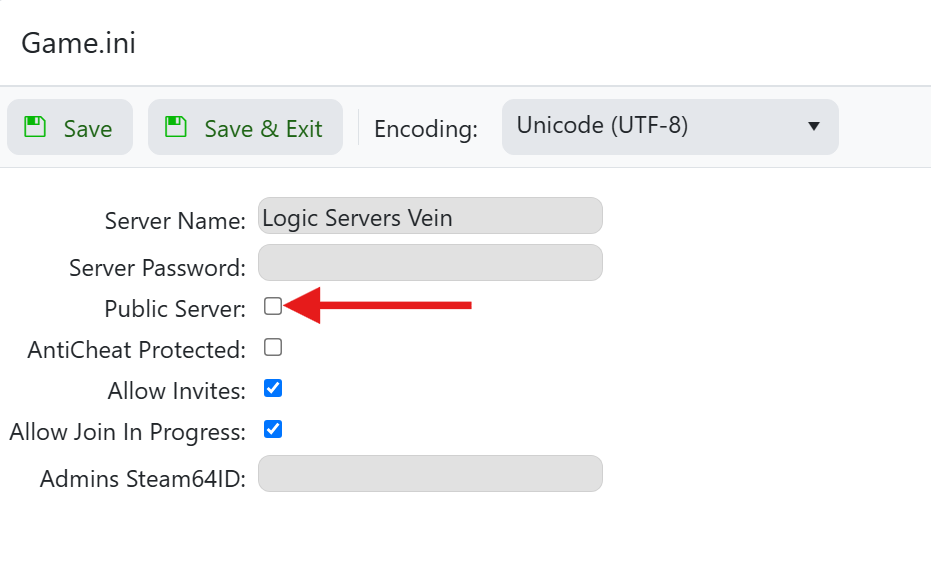
- Untick the ‘Public Server’ box.
- You will not necessarily need a password so you can optionally remove the 'Server Password', if you have one.
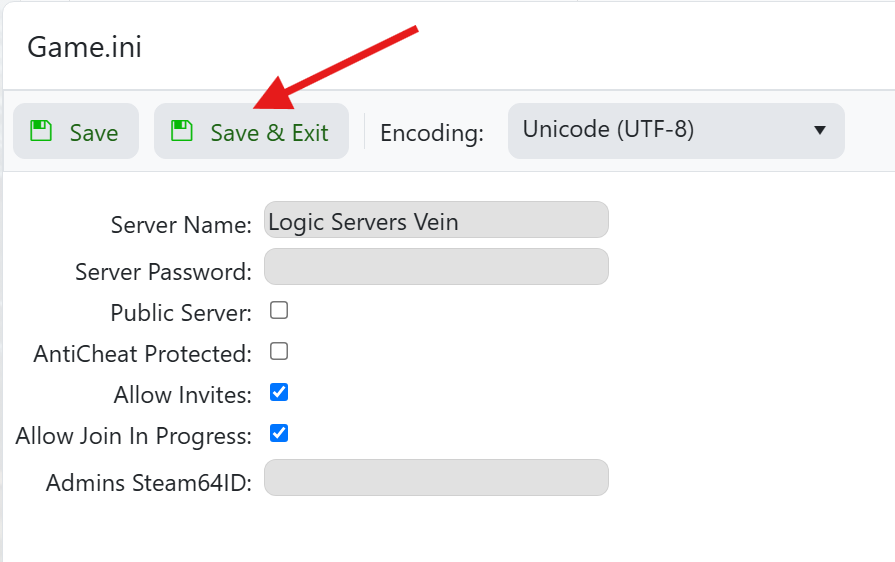
- When you're done click on the ‘Save and Exit’ button above.

Your server will no longer show up in game for anyone to be able to join. From now on you and your friends will need to join the server from the games console. To do this, open the game and press the ‘~’ key to open the console. Then in the console type in ‘connect’ followed by your server's IP address and the connect port shown on your TCadmin panel.
