Create a backup before switching Frozen Flame modes or changing server rules. The panel backup includes the server configuration and the generated files in SaveGames.
- Stop your server and wait for Stopped.
- Click Backup Server, then confirm with OK.
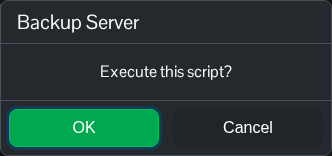
- Wait for compression and upload to finish successfully. Check that the new dated archive appears in Restore Backup.
To restore an earlier copy, stop the server first. Any progress made after the selected backup will be replaced by the saved files in that archive.
- Open Restore Backup and choose the dated ZIP you want to recover.
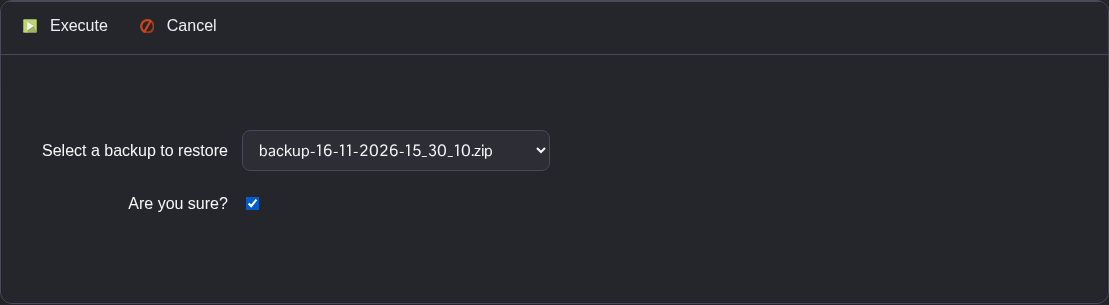
- Tick Are you sure? and click Execute. Wait for the script to finish successfully.
- Check the restored
Game.iniandEngine.ini, then start your server.
Keep an independent copy before a major rollback. In File Manager, download all files in FrozenFlame/Saved/SaveGames and FrozenFlame/Saved/Config/WindowsServer. You can also transfer those folders using FTP. Keep all the save files together, including WorldSave.sav, WorldSave.meta.sav and WorldGeneration.sav.
