Steam Update currently replaces Onset's server_config.json with Steam defaults. Keep a copy and restore it after updating so your allocated address, game port, slot count and custom settings remain correct.
- Stop your server and create a panel backup.
- Open File Manager, right-click
server_config.jsonin the root and choose Download. Keep this file on your computer. FTP is an alternative for downloading your copy. - Open Steam Update. It can begin immediately. Wait for SteamCMD to report that the application is fully installed and the process has completed.
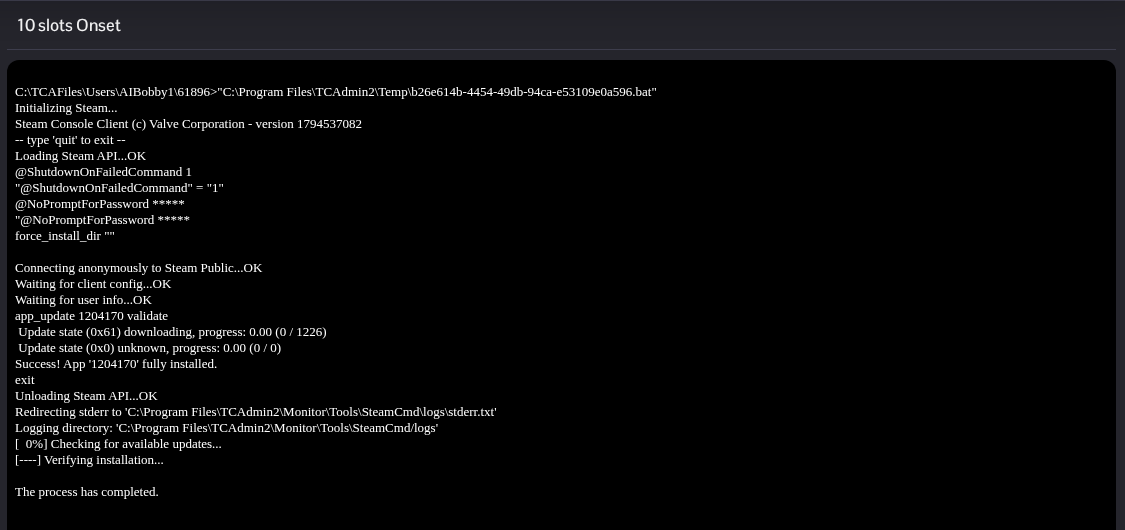
- Before starting the server, open Configuration Files and choose Text Editor beside
server_config.json.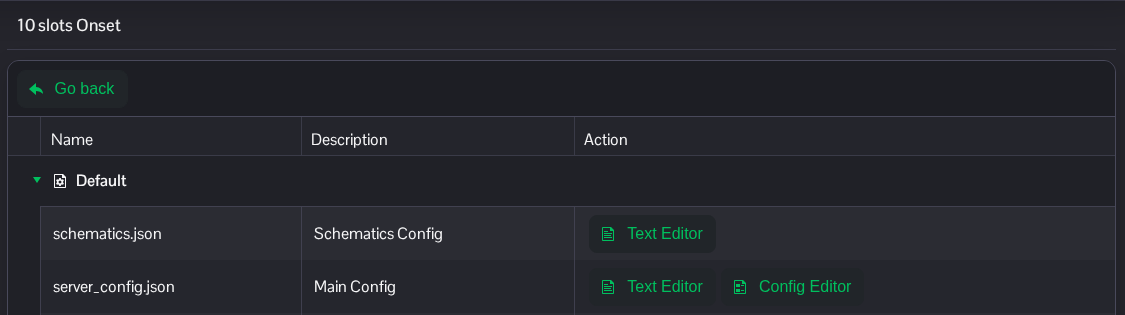
- Open your downloaded JSON file in a text editor on your computer. Copy its contents, replace the contents in the panel's code editor and click Save & Exit. Use your saved values for
ipaddress,portandmaxplayers, along with your names, password and package list. - Start the server. Download
server_log.txtfrom Log Viewer and check the latest startup for the expected listening ports andServer loaded. Entering simulation....
Install any available game-client update before reconnecting. Use Text Editor for this restoration because the current Config Editor saves invalid JSON.
