The team balancing settings control automatic balancing and the allowed difference between team sizes.
- Log in to the game panel, open your Counter-Strike 2 service and Stop it.
- Open Configuration Files and choose Text Editor beside
game\csgo\cfg\server.cfg. Use this editor for custom settings. The separate Config Editor sets defaults and can replace your existing configuration. - Set these two lines. This example enables automatic balancing and limits the team-size difference to one.
mp_autoteambalance "1"
mp_limitteams "1"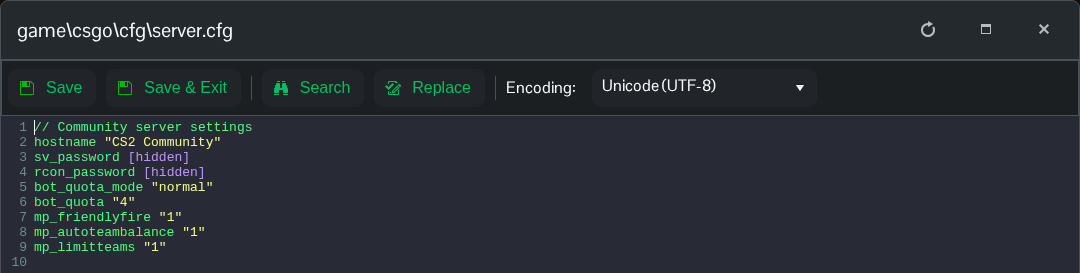
- Click Save & Exit, then start the server. Query
mp_autoteambalanceandmp_limitteamsthrough RCON to check the active values.
Use mp_autoteambalance "0" to disable automatic balancing. A value of 0 for mp_limitteams removes that team-size restriction. Check any mode-specific server override file for conflicting copies of these settings.
