Join your Counter-Strike 2 server using its full game address from the control panel. Keep the port after the IP address, even if it differs from the usual CS2 port.
- Log in to your game control panel and open your Counter-Strike 2 service. Copy the IP address and port under Connection Info. Use your own address, rather than the example in the screenshot.
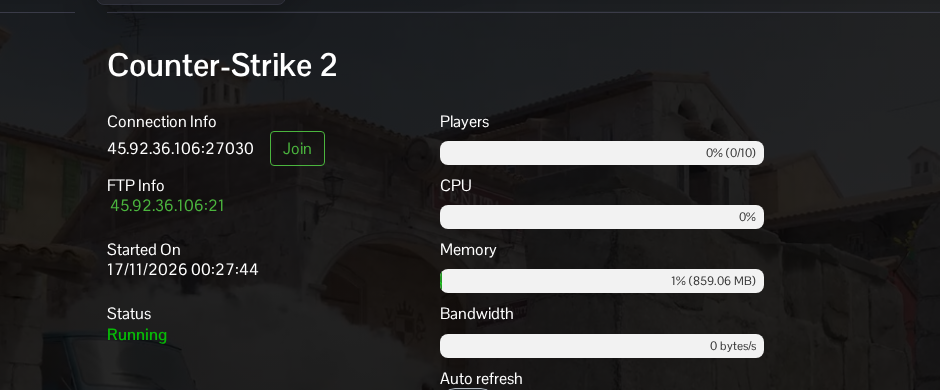
- Start the server if it is stopped and allow its map to finish loading. Update your CS2 client through Steam so it matches the server version.
- Launch Counter-Strike 2 and open the gear icon for Settings. Under Game, set Enable Developer Console (~) to Yes.
- Open the console with ~. If your keyboard uses a different key, check the console key binding in the game's keyboard settings.
- If the server has a join password, enter the following first, replacing the example with the password supplied by the server owner. This is the player join password, separate from the RCON password.
password "YourJoinPassword" - Enter
connectfollowed by your full Connection Info address, then press Enter. Replace the example IP and port below with your own.connect 203.0.113.10:27030
If the game reports an incorrect password, check the join password with the owner and enter it again before reconnecting. For a version mismatch, update both the game and server. A timeout needs a check of the exact address and the server's latest startup output; a Running panel status alone does not confirm that the map has finished loading.
