Add your Frozen Flame server to the game’s private-server list using the IP address and game port from your panel.
- Open your Frozen Flame service in the game panel. If it is stopped, click Start and allow startup to finish. You can check the current
FrozenFlame.login Log Viewer for the loaded map. - Copy the complete address under Connection Info. This contains your server IP and game port separated by a colon. Use your own service’s address, rather than the default port from an installation tutorial. The separate Query Info and RCON Info addresses are not the player connection address.
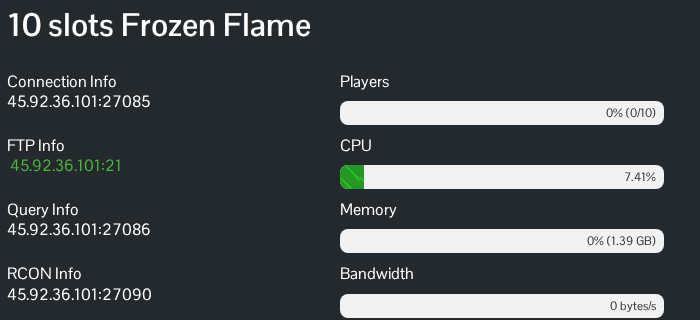
- Launch Frozen Flame and open its private-server list from the play options. Add a server entry and enter the complete
IP:portaddress you copied. - Confirm the new entry, select your server in that list and connect. If a password is requested, enter the joining password set by the owner. This is
ServerPasswordinGame.ini, separate from the RCON and game-panel passwords.
Keep the game client and server on the same game version and branch. If you are disconnected shortly after connecting, check with the owner that EasyAntiCheat is enabled on both the server and client, or disabled on both. The developer documents the Steam launch option without EasyAntiCheat for servers started with -noeac.
