Vein zombie settings are controlled from Engine.ini. Use these settings when you want zombies to be easier, harder, faster, slower, more punishing, or more forgiving for your server's play style.
- Open your Vein server in the control panel.
- Take a backup first: How to Backup your Vein Server.
- Click Configuration Files.
- Find
Engine.ini, then click Config Editor.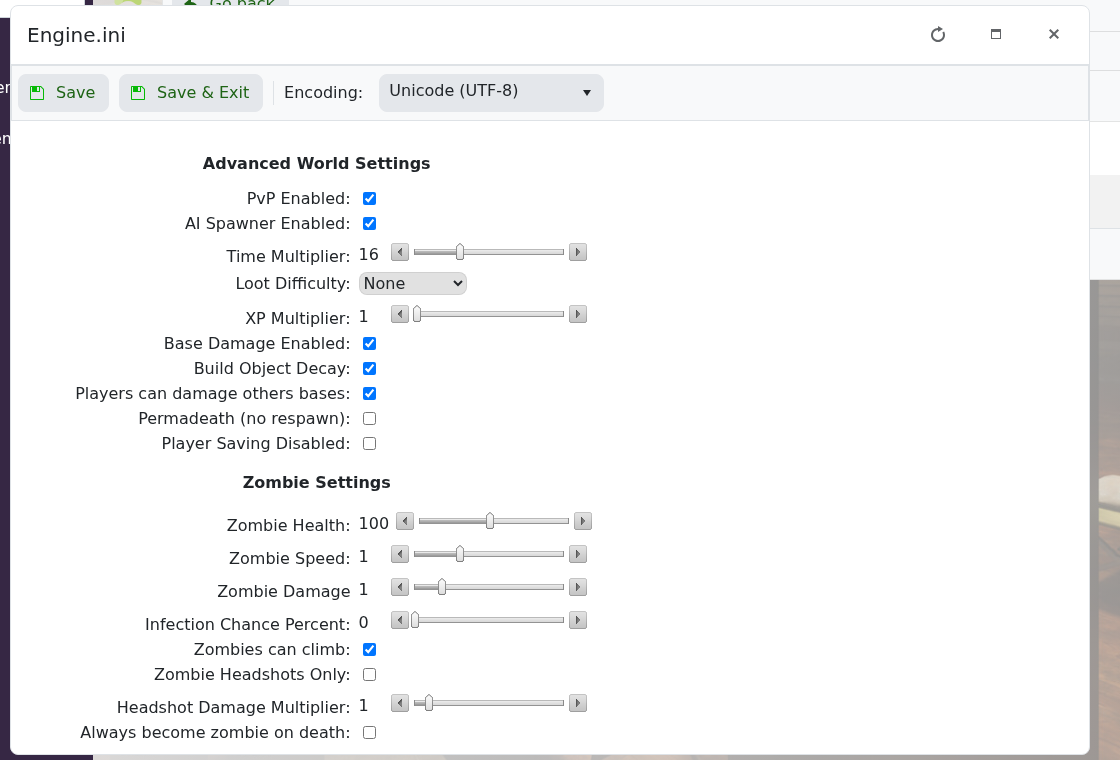
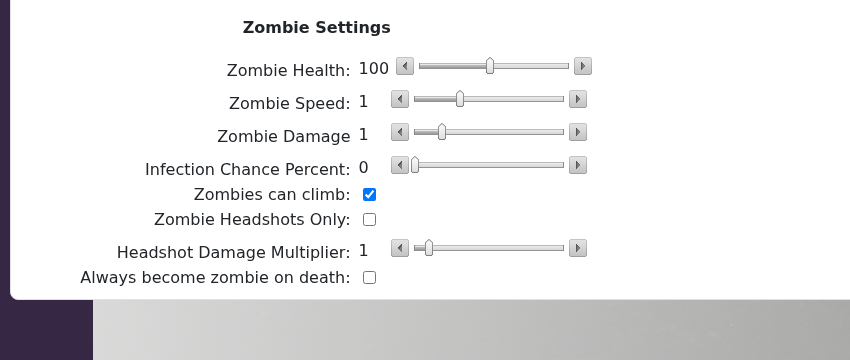
- Scroll to Zombie Settings.
- Change the values you want, then click Save & Exit.
- Restart the server so the new settings are used.
| Setting | What it changes |
|---|---|
| Zombie Health | How much health zombies have. |
| Zombie Speed | How fast zombies move. |
| Zombie Damage | How much damage zombies deal. |
| Infection Chance Percent | The chance of infection from zombie attacks. |
| Zombies can climb | Allows zombies to climb where supported by the game. |
| Zombie Headshots Only | Requires headshots to kill zombies when enabled. |
| Headshot Damage Multiplier | Changes how much extra damage headshots deal. |
| Always become zombie on death | Controls whether death always turns the player into a zombie. |
Make smaller changes first and test them in-game. Extreme values can make the server much easier or much harder than intended.
