Restore an Empyrion backup when you need to roll the server back after a bad update, unwanted save change, broken scenario install, or accidental file edit. Restoring replaces current server files with the selected backup, so take a new backup first if you may need the current state later.
Restore A Backup
- Open your Empyrion server in the control panel.
- Stop the server.
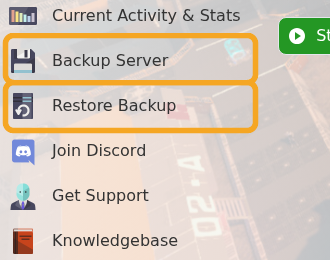
- Click Restore Backup.
- Select the backup file you want to restore.
- Tick Are you sure?.
- Click Execute.

- Wait for the restore task to finish, then start the server.
If the server will not start after a restore, open Log Viewer and check DedicatedServer.txt. If you are unsure which backup to restore, submit a support ticket before overwriting the current files.
