If you're adding voice chat or a web map to Minecraft, the mod or plugin may need a port of its own. On a Multicraft server, you can get one from Additional Ports. You'll then put that number into the mod's settings so it uses the port assigned to your server.
Add a port in Multicraft
- Log in to Multicraft and open your server.
- Expand Advanced and click Additional Ports.
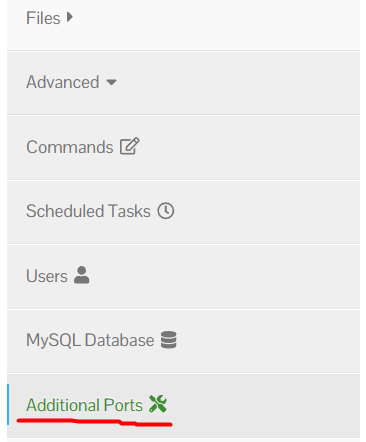
- Click Add Port and note the number you get. This is the port to use in your mod's settings, even if its documentation shows a different default. You can add more ports here or use Delete to remove one you no longer need.
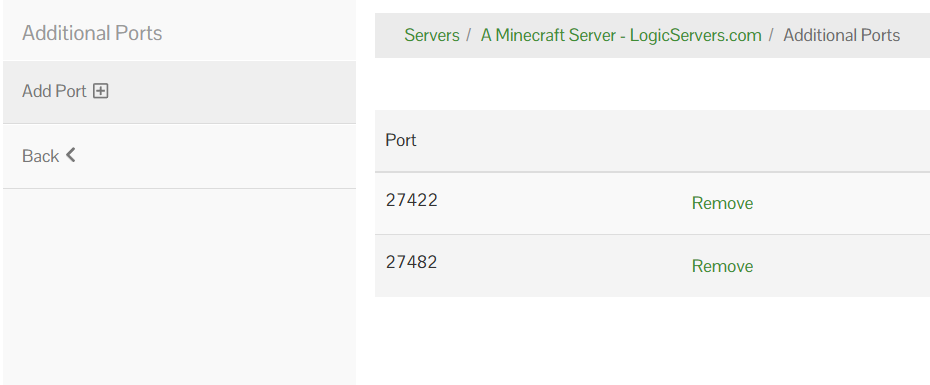
- Open the mod or plugin's configuration file and set its port to the number Multicraft allocated. Save the file and restart the service as directed by the mod or plugin.
If you host Minecraft at home
For a server on your own computer, you need a router port forward and a firewall rule. The example below uses Minecraft Java's usual game port, 25565 over TCP. A mod or plugin may need a different port or UDP instead, so check its instructions first.
Find the computer's local IP
On Windows, open Command Prompt, run ipconfig and find the IPv4 Address for your active connection. It will usually look like 192.168.x.x.

On a Mac, open System Settings > Network, select your Wi-Fi or Ethernet connection and open Details. Older macOS versions call this System Preferences. Find the IP address in the connection details.
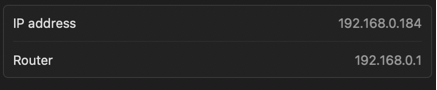
Add the router rule
- Open your router's address in a browser. Common addresses are
192.168.0.1and192.168.1.1. Sign in with its admin details. - Look for Port Forwarding, Virtual Server or NAT Forwarding, often under Advanced.
- Add a rule named Minecraft. Set the internal and external ports to
25565, choose TCP and enter the local IP of the computer running the server. - Save the rule. Some routers restart when you apply changes.
Allow the connection through the firewall
On Windows, open Windows Defender Firewall > Advanced Settings > Inbound Rules > New Rule. Choose Port, select TCP and enter 25565. Allow the connection and give the rule a name you recognise.
On macOS, check that the application running the Minecraft server is allowed in the Firewall options. In older versions, these are under System Preferences > Security & Privacy.
Check the result
With the server running, open CanYouSeeMe.org and check 25565. This tests TCP; it will not confirm whether a UDP voice chat port is working.
