Current Longvinter servers use the player's EOS ID for administrator access. The setting is still called AdminSteamID, but it takes EOS IDs rather than SteamID64 numbers.
- Ask the player to copy their EOS ID from Longvinter's game settings. Use their own ID rather than the example shown below.
- Log in to your game control panel, open your Longvinter service and click Stop. Wait for it to stop before editing
Game.ini, as the running server can overwrite changes. - Open Configuration Files and click Text Editor beside
Game.ini. - Find
AdminSteamID=beneath[/game/blueprints/server/gm_longvinter.gm_longvinter_c]. Add the EOS ID after the equals sign. Separate multiple IDs with one space.AdminSteamID=FIRST_EOS_ID SECOND_EOS_ID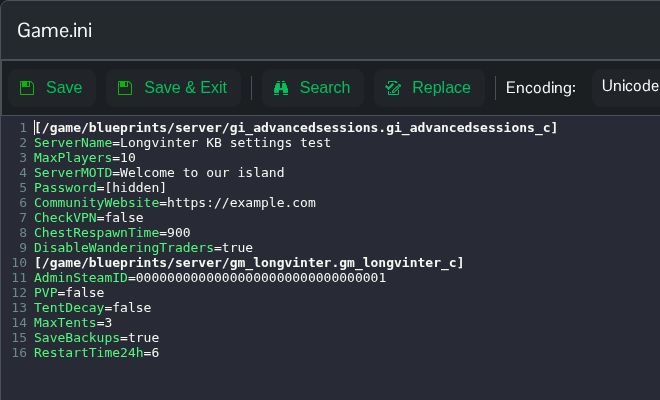
- Click Save & Exit, return to the service page and click Start.
- Have the administrator reconnect to the island. To remove access later, stop the server, remove only their ID from the same line, save and start again.
The example in the screenshot is a placeholder. Use the EOS IDs of the people who should actually manage your server.
You can also open Saved/Config/WindowsServer/Game.ini through File Manager, or download and edit it using FTP. File Manager opens in the Longvinter folder, so start with Saved.
