Longvinter includes a VPN check for connecting players. You can disable that check when it is preventing a player from joining your island.
- Log in to your game control panel, open your Longvinter service and click Stop. Wait for it to stop before editing
Game.ini, as the running server can overwrite changes. - Open Configuration Files and click Text Editor beside
Game.ini. - Find
[/game/blueprints/server/gi_advancedsessions.gi_advancedsessions_c]and setCheckVPNto false. Add the line beneath that heading if it is missing.CheckVPN=false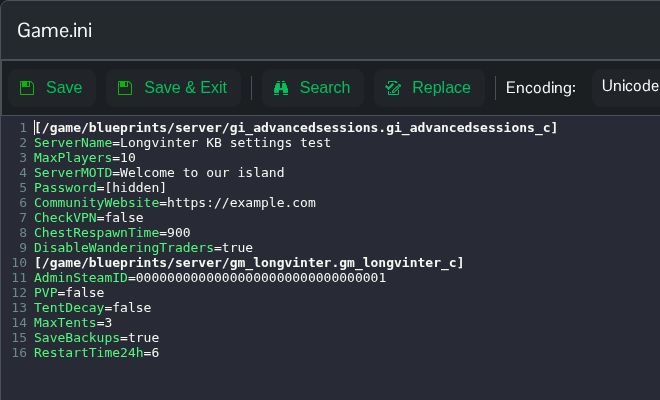
- Click Save & Exit, return to the service page and click Start.
- Ask the affected player to reconnect. If the connection still fails, the VPN check was not the only cause.
Use CheckVPN=true to turn the check back on.
You can also open Saved/Config/WindowsServer/Game.ini through File Manager, or download and edit it using FTP. File Manager opens in the Longvinter folder, so start with Saved.
