Connect to Onset using the game port from server_config.json. The port shown under Connection Info can be the query port for this package, so read the configured game port before connecting.
- Open your Onset service in the game control panel. Start it if it is stopped and allow the server to load its packages.
- Open Configuration Files, then Text Editor beside
server_config.json. Read the number beside"port"without editing or saving the file. That is the game port. For example, the screenshot shows27127.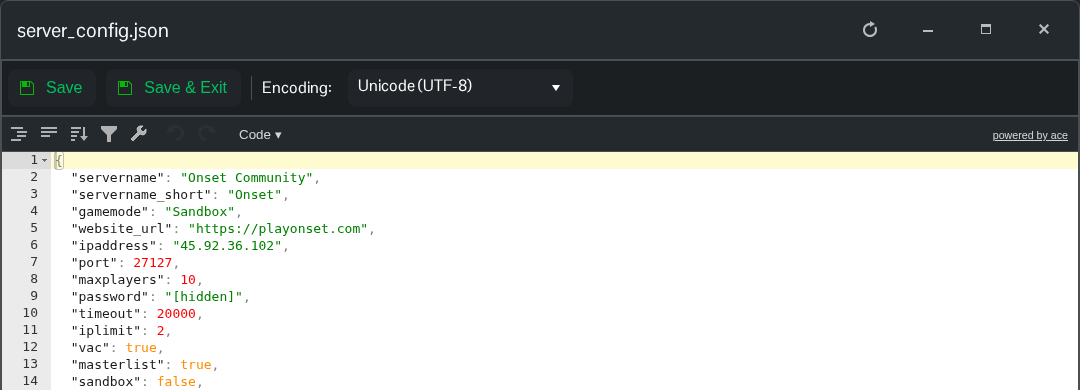
- Copy the public IP from the service’s Connection Info, but combine it with the game port you just read. In the screenshot’s example, the address is
45.92.36.102:27127. Use your own service’s values. The query port and file-transfer port are not joining ports. - Launch Onset and open its direct-connect window. Enter the public IP and game port, then connect. Enter the server’s joining password if prompted. Ask the server owner for this password if you do not manage the service.
- Allow the required client files to download and the game to finish loading. If Onset reports a compatibility mismatch, update the client and server to compatible releases before trying again.
If the connection fails, recheck "port" in the saved JSON and confirm the latest server_log.txt reports that game port when opening its network channels. This package’s Steam validation can replace the JSON with defaults, so follow the update guide when updating the server.
