Use Longvinter’s direct-IP connection to join your community server with the public game address from the control panel.
- Open your Longvinter service in the game control panel. Start it if it is stopped and allow the world to load.
- Copy the full address under Connection Info, including its port. The screenshot’s address is an example; use the address on your own service.
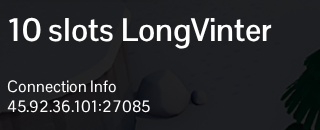
- Launch the matching version of Longvinter and open its server browser. Use the direct-IP connection option and enter the copied address. If IP and port are separate fields, enter each part in its corresponding field.
- Connect to the server and enter its joining password if asked. Use the server password supplied by its owner, rather than your game control panel password. Allow the client to finish loading the world.
Use the port beside the IP under Connection Info. The query, FTP and RCON addresses serve other purposes. If the connection fails after an update, make sure the server and client have both been updated before trying again.
