Join a Terraria dedicated server from the PC game's Join via IP menu. Terraria asks for the IP address and port separately, so keep both parts of your panel address available.
- Open your Terraria service in the game control panel and copy the address under Connection Info. The IP is before the colon and the port is after it. Use your own values rather than those in the screenshot.
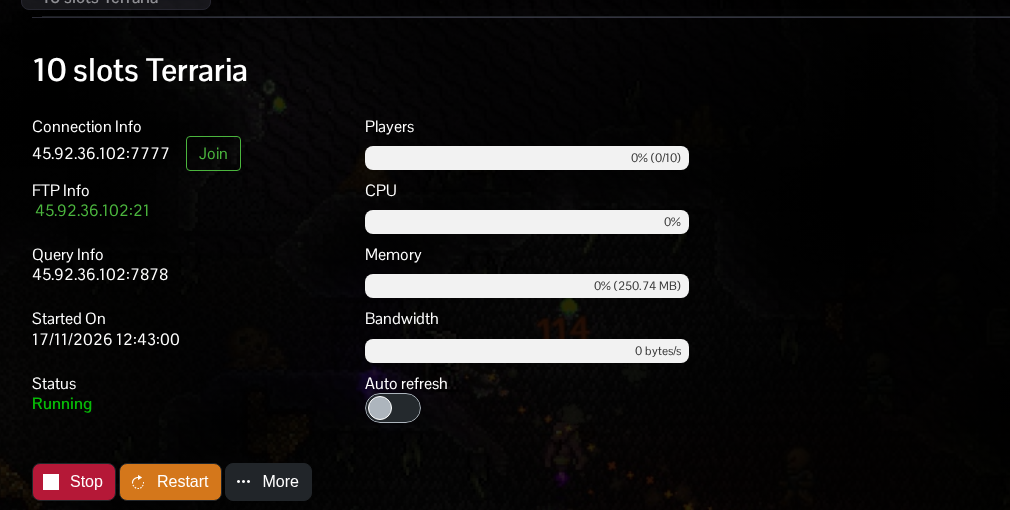
- Start the server if it is stopped and allow the world to finish loading. Keep the game and server versions compatible.
- Launch Terraria on your PC. Choose Multiplayer, then Join via IP.
- Select the character you want to use. A Journey world requires a Journey character; use a non-Journey character for other worlds.
- When asked for the server IP address, enter only the IP, with no colon or port. Choose Accept. For an example address of
203.0.113.10:7777, this first entry would be203.0.113.10 - When asked for the server port, enter the number after the colon in your own Connection Info address and choose Accept. For the same example, this would be
7777 - Enter the join password if the server asks for one, then allow the world to load.
If Terraria reports a version mismatch, check the versions on both sides before reconnecting. If the server uses tModLoader, launch the matching tModLoader client instead of standard Terraria.
For a timeout, check that the IP and port went into separate boxes and that you used Connection Info, rather than Query Info or the FTP port. The server owner should also check whether the world has finished loading; a Running panel status alone is not proof that the server is ready to accept players.
