Reforged Eden II is the current Reforged Eden scenario path for Empyrion servers. It is installed through Steam Workshop, then selected in the Empyrion server configuration. Use this guide for new Reforged Eden saves or for servers moving to Reforged Eden 2 Beta.
Before You Install Reforged Eden II
Take a backup first: How to backup your Empyrion server save. Changing scenario is a major world change, so use a fresh save name unless you are deliberately continuing an existing Reforged Eden II save. Reforged Eden II is also heavier than vanilla Empyrion, so larger saves and busy servers may need more RAM.
Install Reforged Eden II From Steam Workshop
- Open your Empyrion server in the control panel.
- Stop the server before installing Workshop content or changing the active scenario.
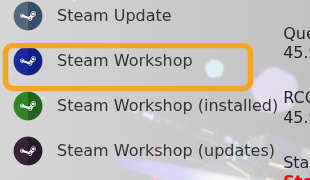
- Click Steam Update and let it finish so the base server files are current.
- Click Steam Workshop.
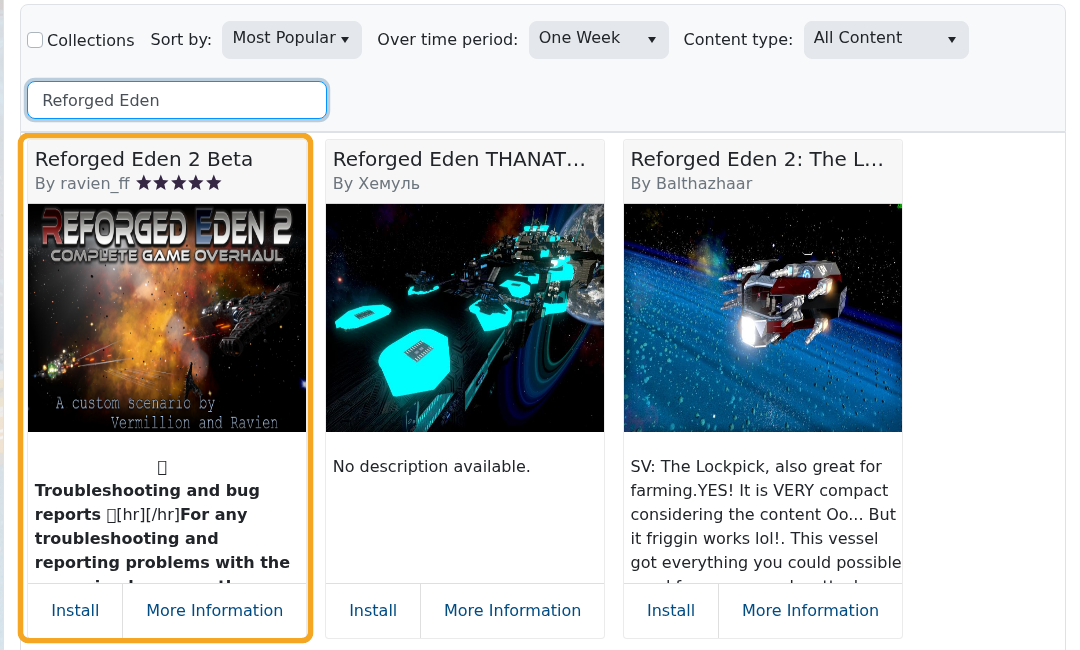
- Search for
Reforged Eden. - Install Reforged Eden 2 Beta by ravien_ff. Do not install the blueprint results that only say they are built for Reforged Eden.
Set The Server To Use Reforged Eden II
- Click Configuration Files.
- Open
server.yamlwith Text Editor.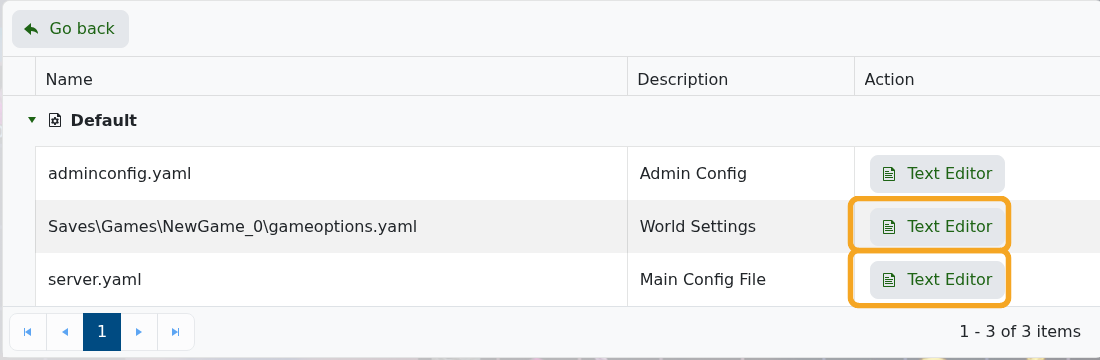
- Find the
GameConfigsection. - Set
CustomScenarioto the Reforged Eden II scenario folder name installed by Workshop. For most installs this isReforged Eden 2:
GameConfig:
  GameName: ReforgedEden2
  Mode: Survival
  CustomScenario: Reforged Eden 2
- Use a new
GameNameif you want the server to generate a fresh save for Reforged Eden II. - Click Save & Exit.
- Open
Saves\Games\NewGame_0\gameoptions.yamlif your save already exists, or edit the generated save'sgameoptions.yamlafter first start. - Enable the scenario-recommended options for Reforged Eden II, including Mass/Volume, CPU, and Block Limits if your world is using those features.
- Start the server and check Log Viewer for scenario load errors.
If the server starts as vanilla Empyrion, the CustomScenario value or save name is usually wrong. Check the exact scenario folder name in File Manager, correct server.yaml, then restart the server. If the server will not start after the change, restore the backup using How to restore a backup for your Empyrion server or submit a support ticket with the latest Log Viewer output.
