Use Steam Update when Empyrion releases a server update or when the server files need to be repaired. Take a backup first if you have active saves, custom scenarios, Workshop content, or manual file changes.
Run Steam Update
- Open your Empyrion server in the control panel.
- Take a backup first if you need a rollback point: How to backup your Empyrion server save.
- Click Steam Update.
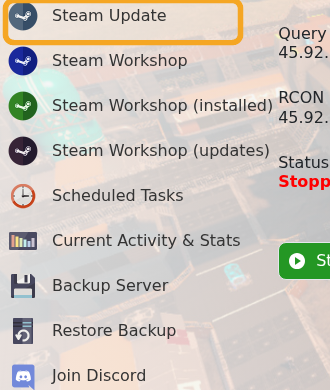
- Wait for the Steam task to finish. Do not start the server while the update is still running.
- Start the server.
- Open Log Viewer and check
DedicatedServer.txtif the server does not start after updating.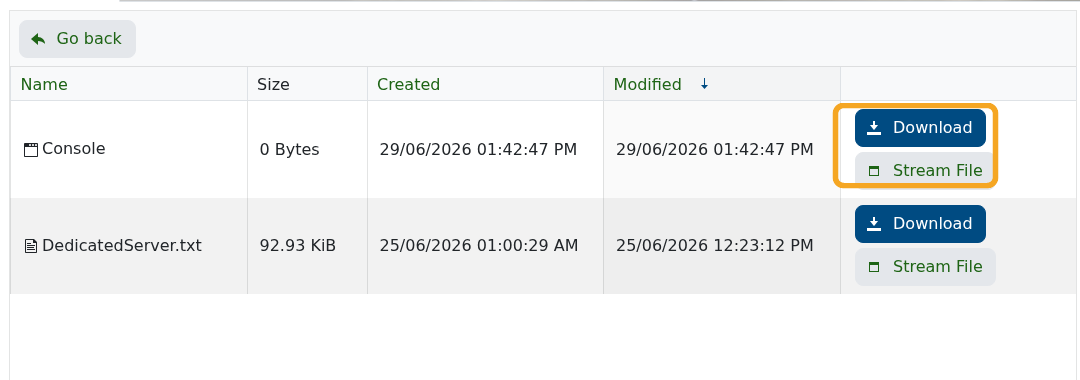
If you use Workshop scenarios such as Reforged Eden, check the scenario page after major updates. Scenario authors may require a matching scenario update, a new save, or a config change after an Empyrion update.
