Use the Connection Info address from the control panel when adding your Satisfactory dedicated server in-game. Satisfactory dedicated servers are added through Server Manager, then claimed with an admin password the first time you connect.
- Open your Satisfactory server in the control panel.
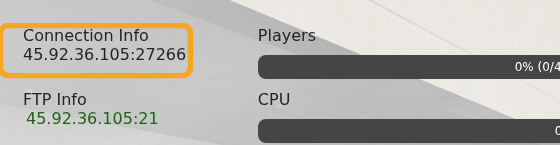
- Copy the IP and port shown under Connection Info.
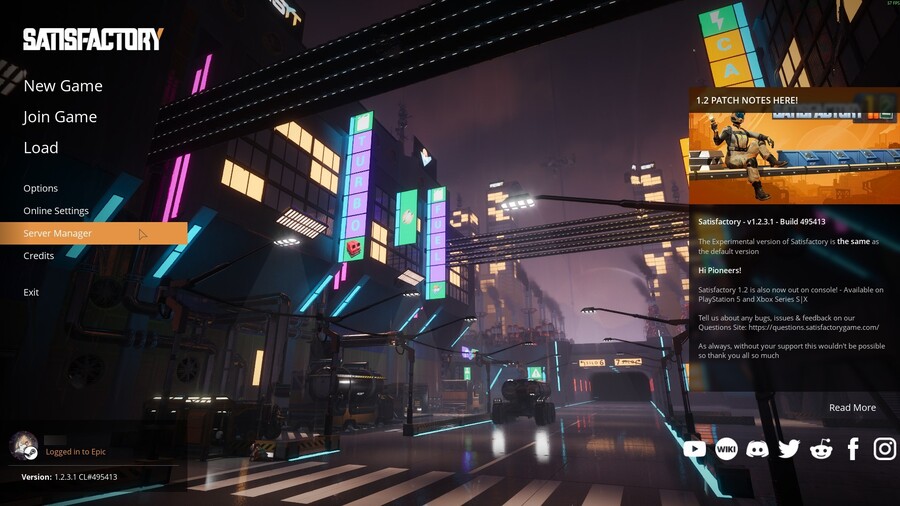
- Start Satisfactory on your PC and click Server Manager from the main menu.
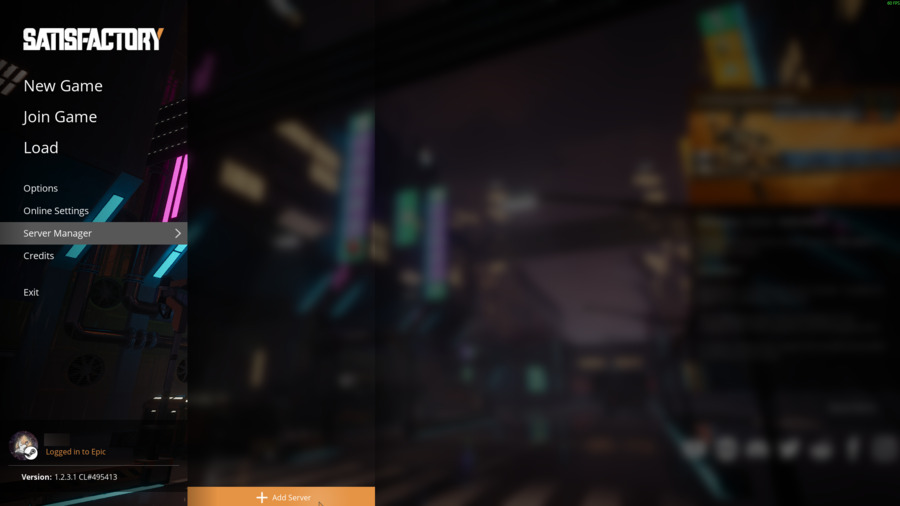
- Click Add Server.
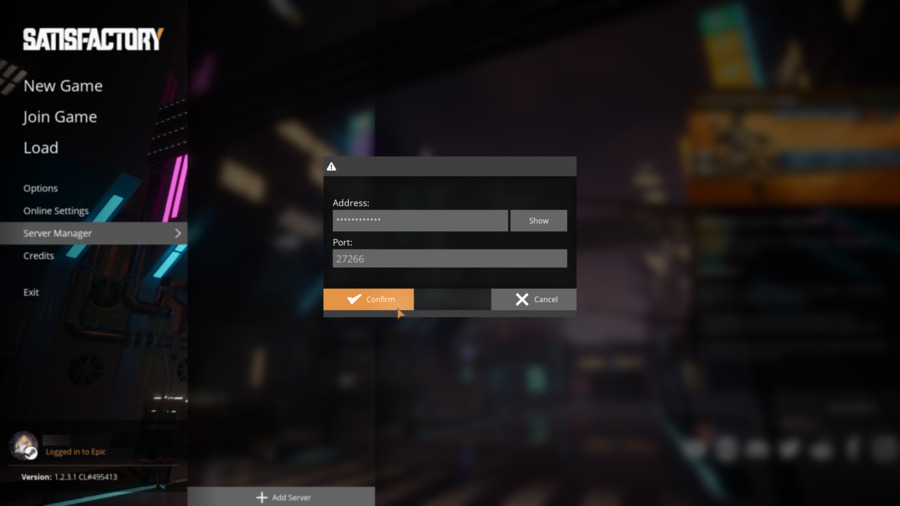
- Enter the server IP in Address and the game port in Port, then click Confirm.
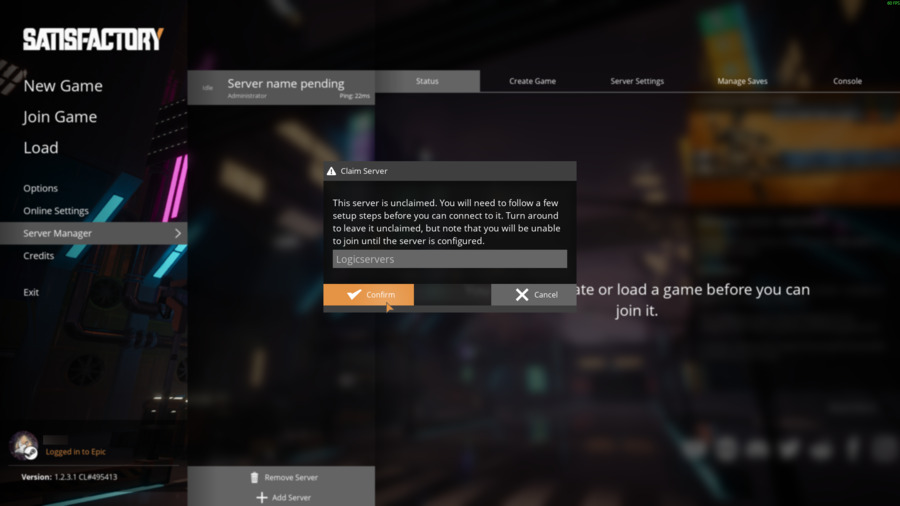
- If the server has not been claimed yet, enter a server name and click Confirm.
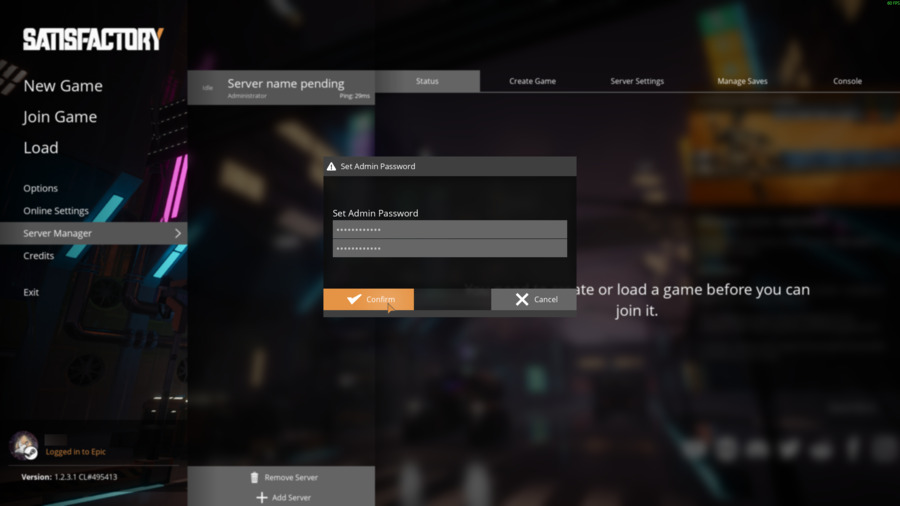
- Set the administrator password when prompted. Keep this password safe because it is used to authenticate server settings later.
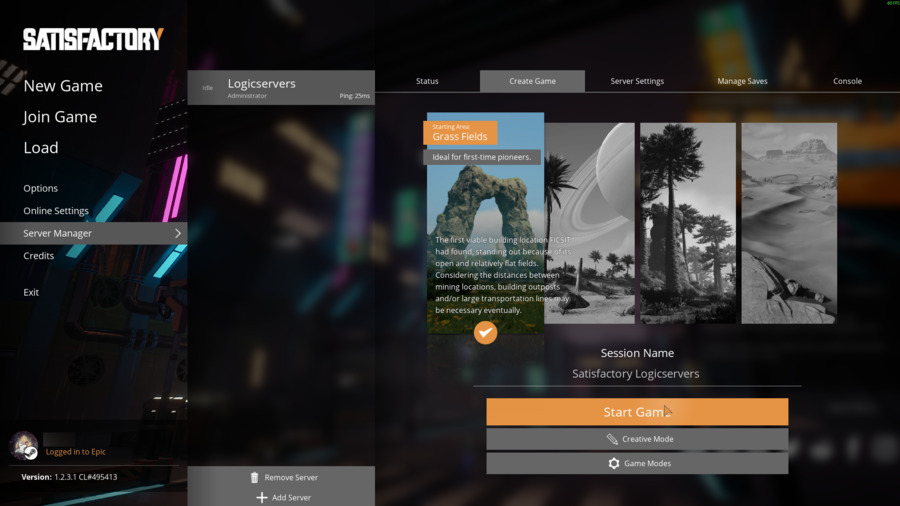
- Select a starting area and click Start Game.
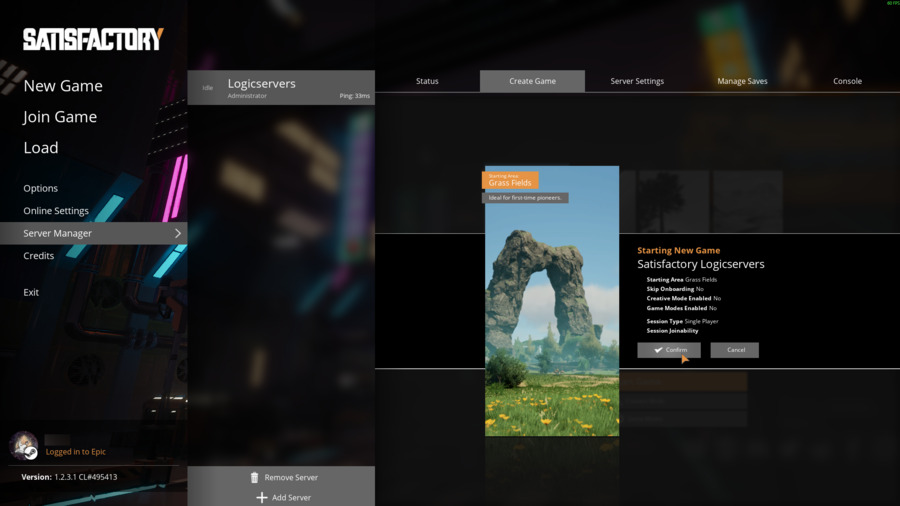
- Confirm the new game settings.
- Wait for the server to prepare the new game.
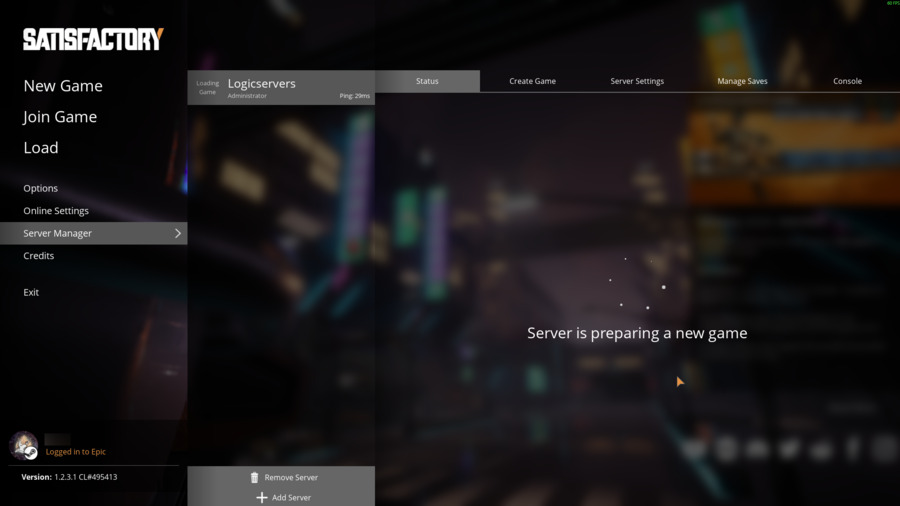
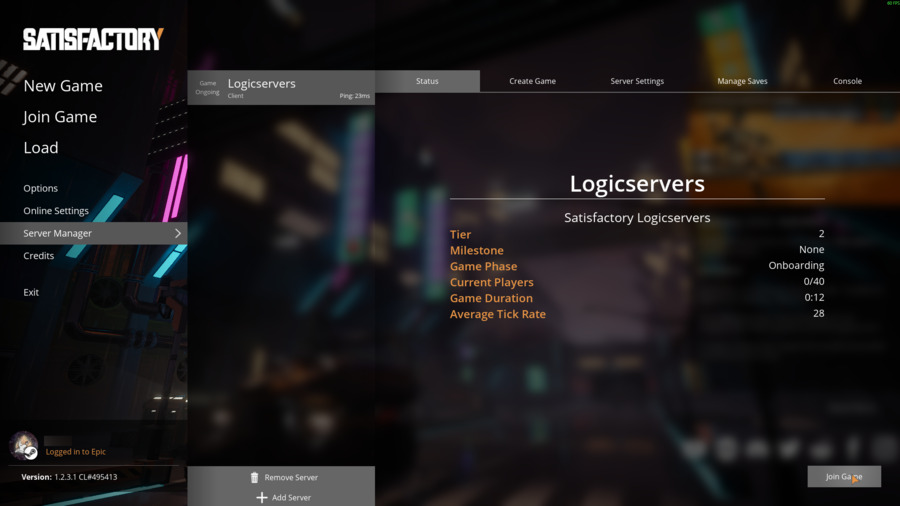
- When Server Manager shows the server online, join the server from Satisfactory.
If the server does not respond, make sure it is started in the control panel and that you copied the game address from Connection Info, not FTP or RCON.
