The main Satisfactory server setup is handled in-game through Server Manager, including passwords, auto-load, autosave, restart schedule, and network quality. The control panel configuration files are mainly for advanced Unreal Engine values, generated server files, or settings provided by a specific guide or support ticket.
- Open your Satisfactory server in the control panel.
- Click Configuration Files.
- You will see
Engine.ini,Game.ini, andScalability.ini.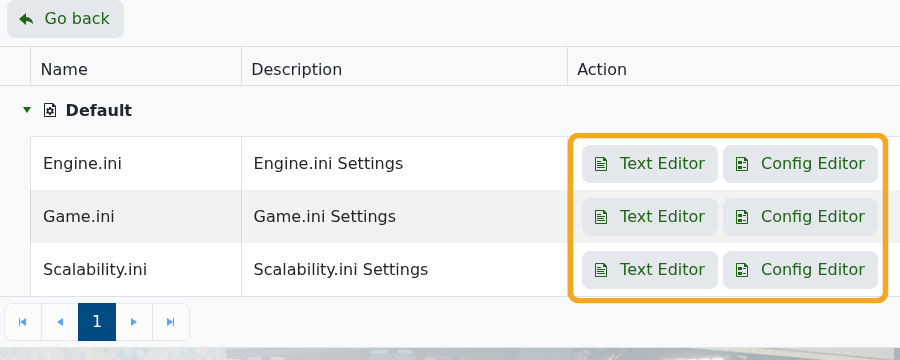
- Use Config Editor first where the panel exposes fields. For
Engine.ini, the panel exposes Agree to Crash Uploads.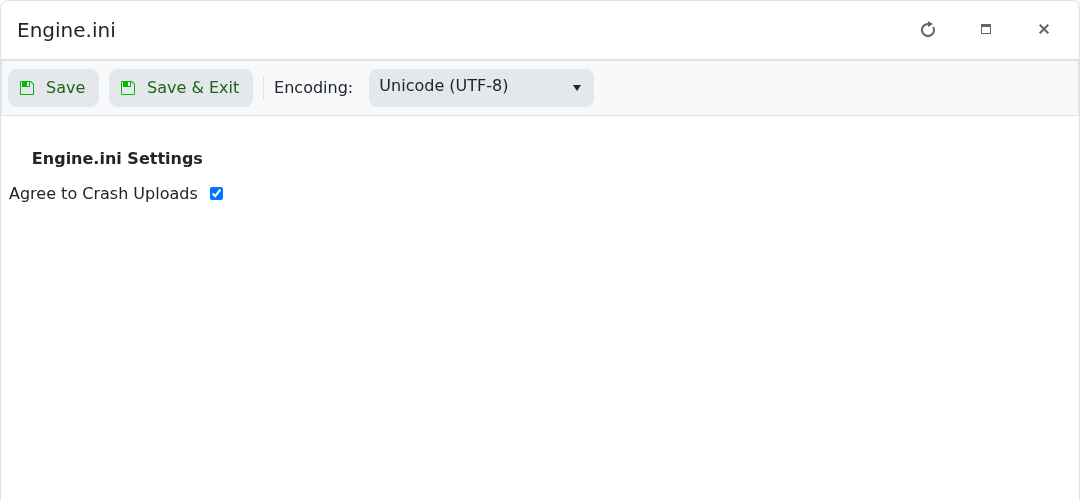
- If a Config Editor has no editable fields, use Text Editor for manual entries. Only add values you understand or values from a specific Satisfactory guide.
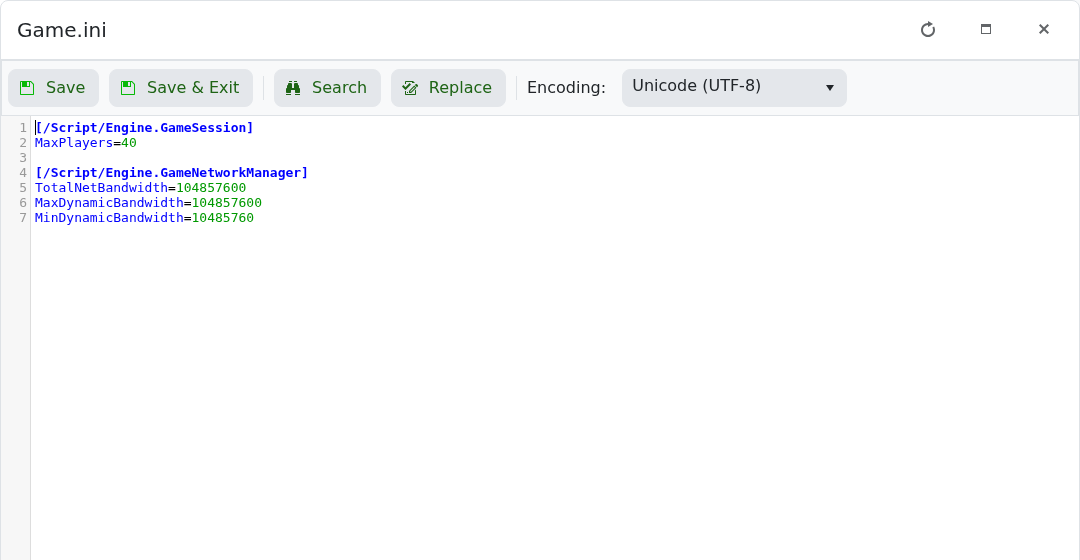
- Click Save & Exit after changing a file.
- Restart the server so the file is loaded.
| File or area | Common use | Notes |
|---|---|---|
| Server Manager settings | Server name, passwords, auto-load session, autosave interval, restart schedule, and network quality. | Use Server Manager in-game for these normal Satisfactory settings. |
Engine.ini | Crash upload agreement and advanced Unreal Engine/server subsystem values. | Use Config Editor for Agree to Crash Uploads. Use Text Editor only for documented advanced entries. |
Game.ini | Manual game/session values when specifically required. | The current Config Editor has no changeable fields. Most Satisfactory gameplay setup should be done in-game through Server Manager instead. |
Scalability.ini | Advanced performance or scalability values. | The current Config Editor has no changeable fields. Do not paste random client graphics settings into the server unless a guide says they apply to dedicated servers. |
FactoryGame/Saved/Config/WindowsServer | Generated dedicated-server config folder. | This path is useful when checking files through File Manager after the server has started and generated its folders. |
If you are trying to change normal world or session settings, use Satisfactory Server Manager first. If you need a specific manual value added and are unsure where it belongs, submit a support ticket before editing the file.
