ARK Survival Ascended dedicated servers are installed with SteamCMD on a Windows VPS. The dedicated server tool is 2430930, named ARK: Survival Ascended Dedicated Server in Steam, and installs the Windows server executable at ShooterGame\Binaries\Win64\ArkAscendedServer.exe.
Before starting, install SteamCMD first: Installing SteamCMD on your Windows VPS.
The same SteamCMD command is used for both first installs and future updates. On a fresh VPS it downloads the server files; on an existing server it checks the install, downloads changed files, and validates anything missing or damaged.
Install the server
- Connect to your Windows VPS.
- Open PowerShell.
- Run this command to install the server to
C:\ark-asa:& "C:\steamcmd\steamcmd.exe" +force_install_dir "C:\ark-asa" +login anonymous +app_update 2430930 validate +quit
- SteamCMD will open, log in anonymously, download app
2430930, validate the server files, and close when finished.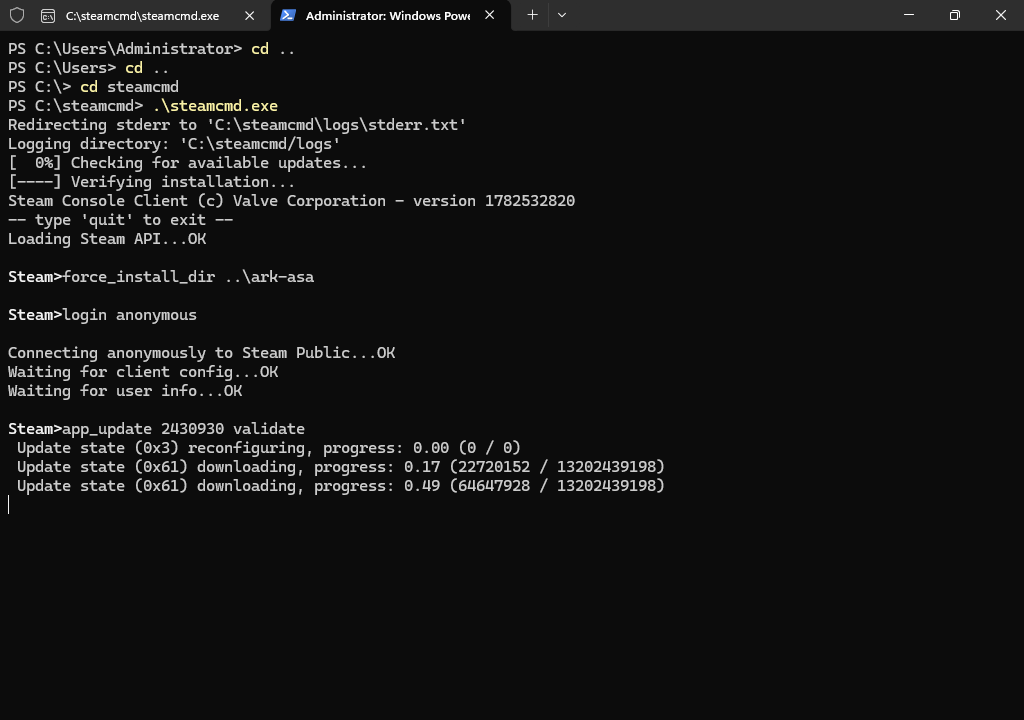
- Wait for SteamCMD to finish downloading and validating the server files. The first install is large, so leave the window open until it says the app is fully installed.
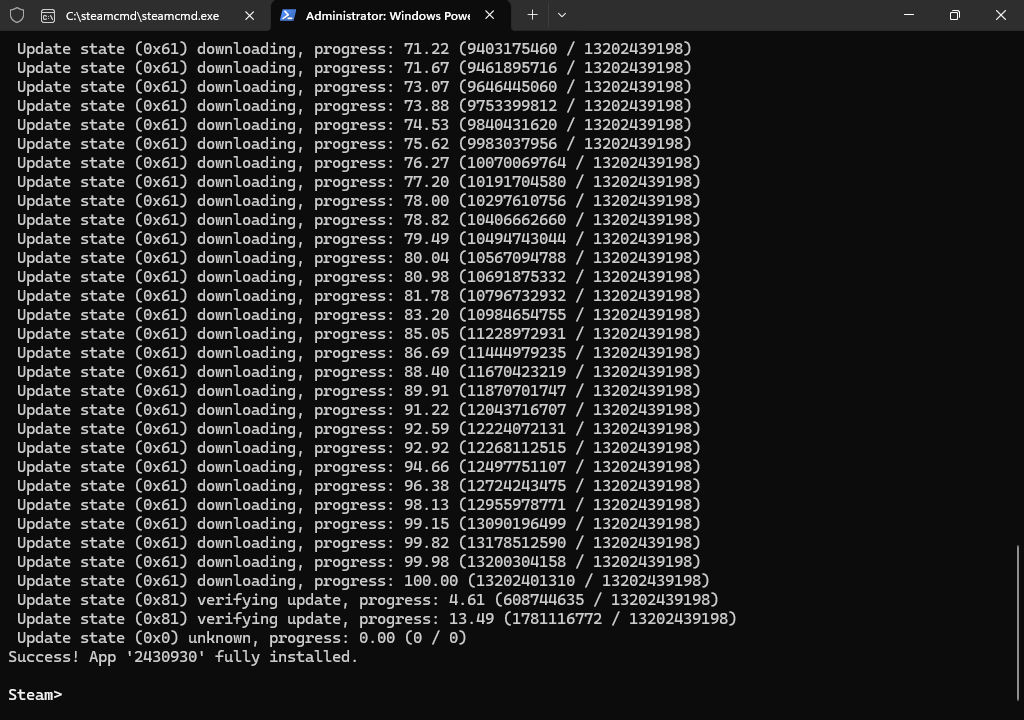
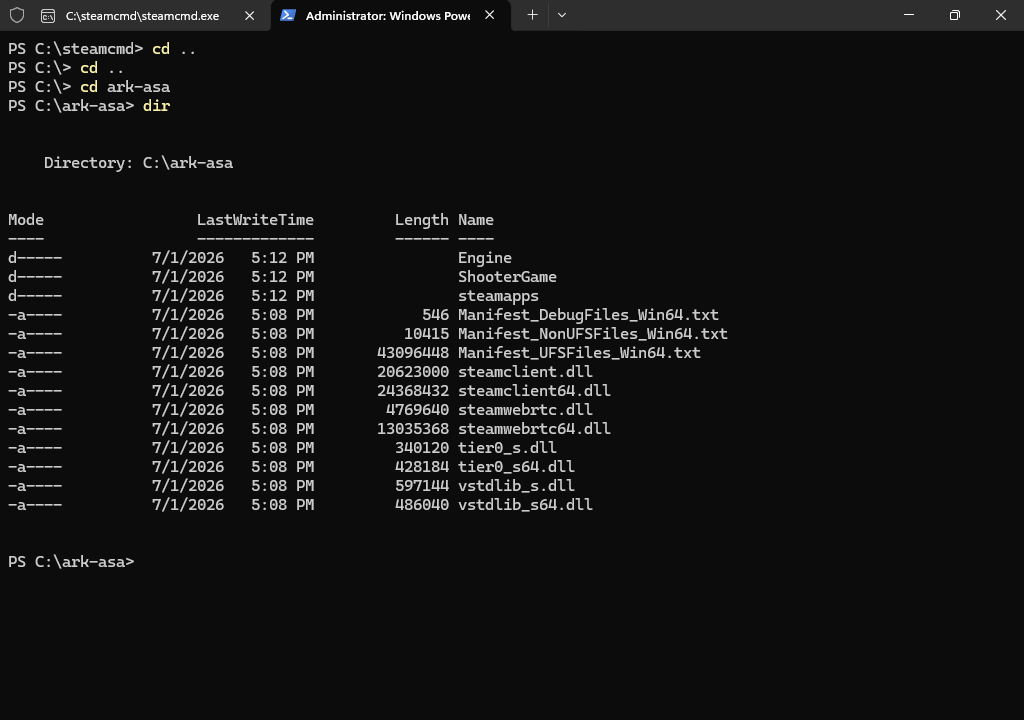
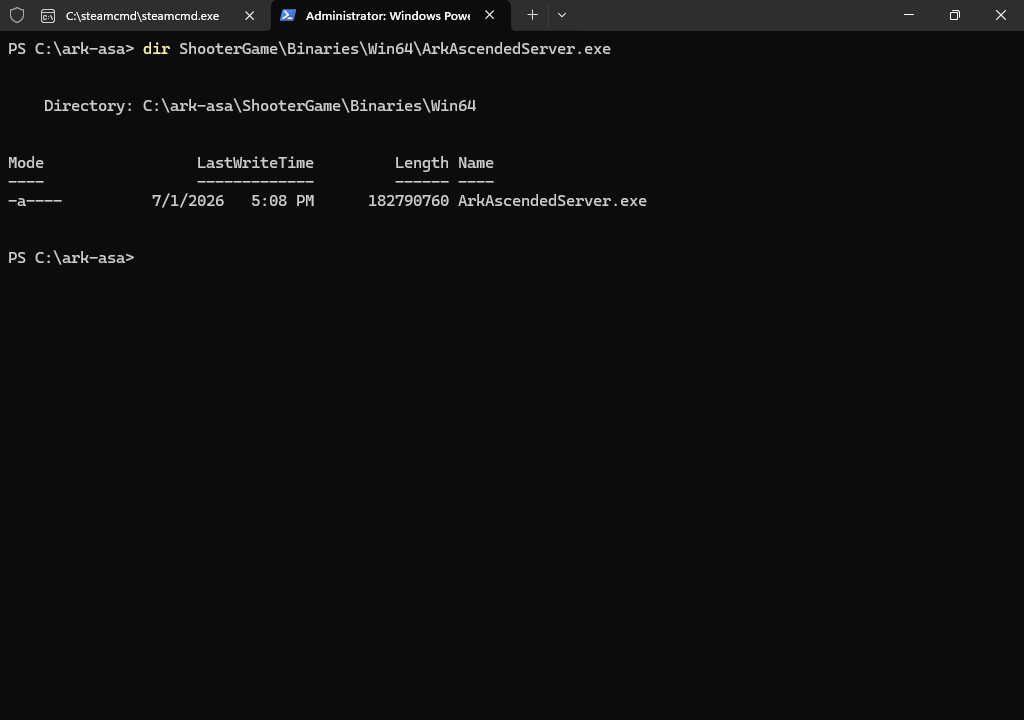
- After the install finishes, check the server folder and executable.
dir C:\ark-asa
dir C:\ark-asa\ShooterGame\Binaries\Win64\ArkAscendedServer.exe
Update the server
- Tell players the server is going offline.
- Stop the ARK Survival Ascended server process.
- Open PowerShell.
- Run the same SteamCMD command against the existing install folder:
& "C:\steamcmd\steamcmd.exe" +force_install_dir "C:\ark-asa" +login anonymous +app_update 2430930 validate +quit
- Wait for SteamCMD to finish. Do not close the window while it is downloading, validating, or installing files.
- Start the server again from your batch file.
The validate option checks the installed files and replaces anything missing or damaged. That is useful after a failed update, but it can make updates take longer than a normal file check. If SteamCMD reports a disk space error, expand the VPS disk or choose a larger plan before retrying. If it reports a network or content server error, run the same command again; SteamCMD will continue validating the existing files.
