Use WorkshopDownloadConfig.json to make your Unturned server download Steam Workshop items. This is usually better than uploading workshop files manually, because the server can fetch the content itself after you save the IDs.
Get the Workshop file IDs
- Open the Steam Workshop item in your browser.
- Copy the number after
?id=in the Workshop URL. - Repeat this for each map or mod you want to add.
Add Workshop items
- Open your Unturned server in the control panel.
- Stop the server.
- Open Configuration Files.
- Open
WorkshopDownloadConfig.jsonwith Text Editor. - Add the Workshop IDs in the correct list for your content. Keep the JSON commas and brackets valid.
- Save the file.
- Run Steam Update if you are refreshing server files, then start the server.
- Check the console or log viewer for Workshop download errors.
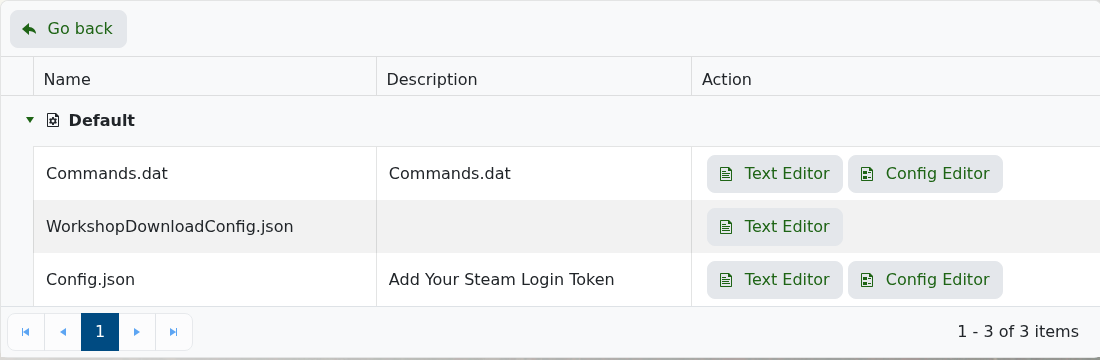
Example WorkshopDownloadConfig.json
The exact file may contain more sections, but Workshop IDs are stored as numbers inside JSON lists. Keep the commas valid when adding more than one item.
{
  "File_IDs": [
    1234567890
  ],
  "Ignore_Children_File_IDs": [],
  "Query_Cache_Max_Age_Seconds": 600
}
Manual uploads
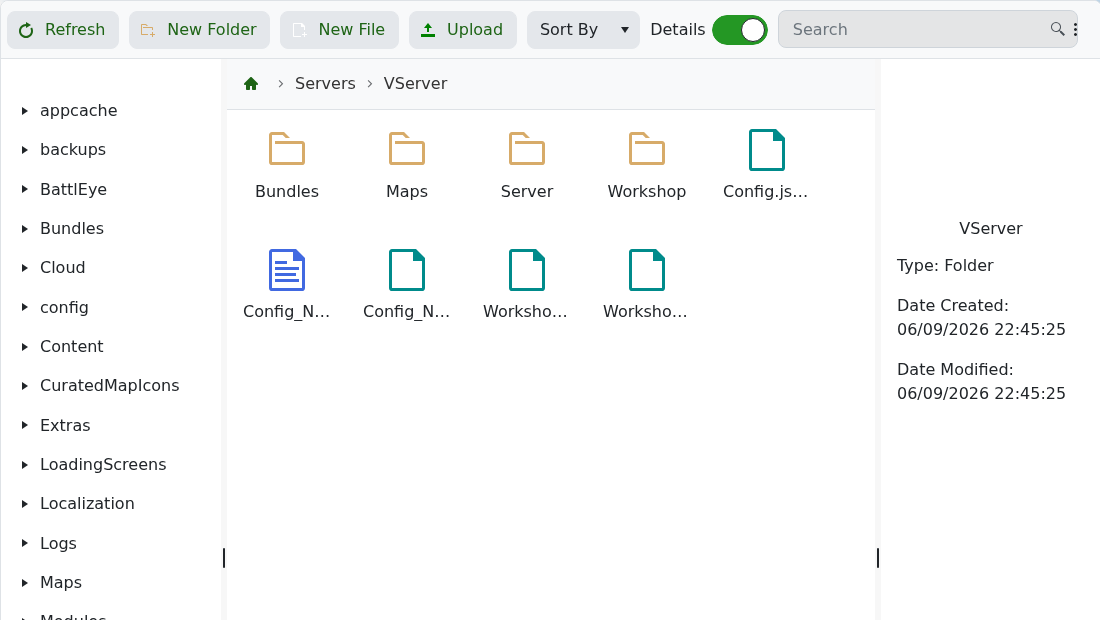
If a Workshop item must be uploaded manually, use File Manager and place the files under the matching Unturned server folder. On current installs the active server folder is commonly Servers/VServer.
Troubleshooting
- If the server does not start, validate the JSON formatting first.
- If an item does not download, confirm the Workshop ID is public and copied correctly.
- If a Workshop item requires a Steam login token, add the token to
Config.jsonbefore starting the server. - If a mod requires Rocket Mod, install Rocket first and check the plugin author's instructions.
