Rocket plugins should be installed only after Rocket Mod is installed and loading correctly. Check the plugin author's instructions first, because older Rocket plugins may not support current Unturned builds.
Before adding plugins
- Install Rocket Mod from Mod Manager first.
- Start the server once after installing Rocket so it can create its folders.
- Download plugins from trusted sources only.
- Unzip the plugin package on your computer before uploading files.
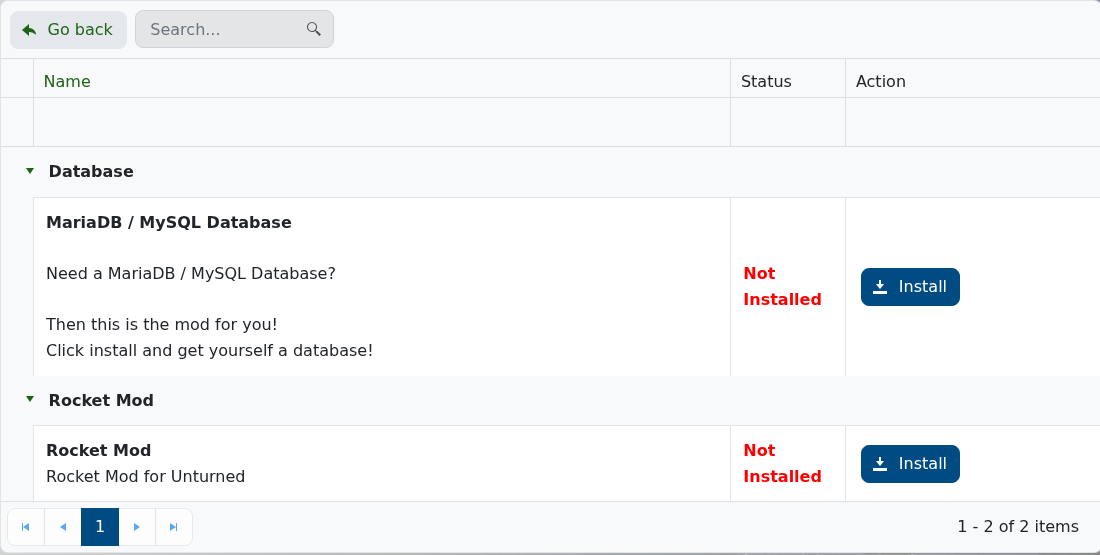
Upload Rocket plugins
- Stop the Unturned server.
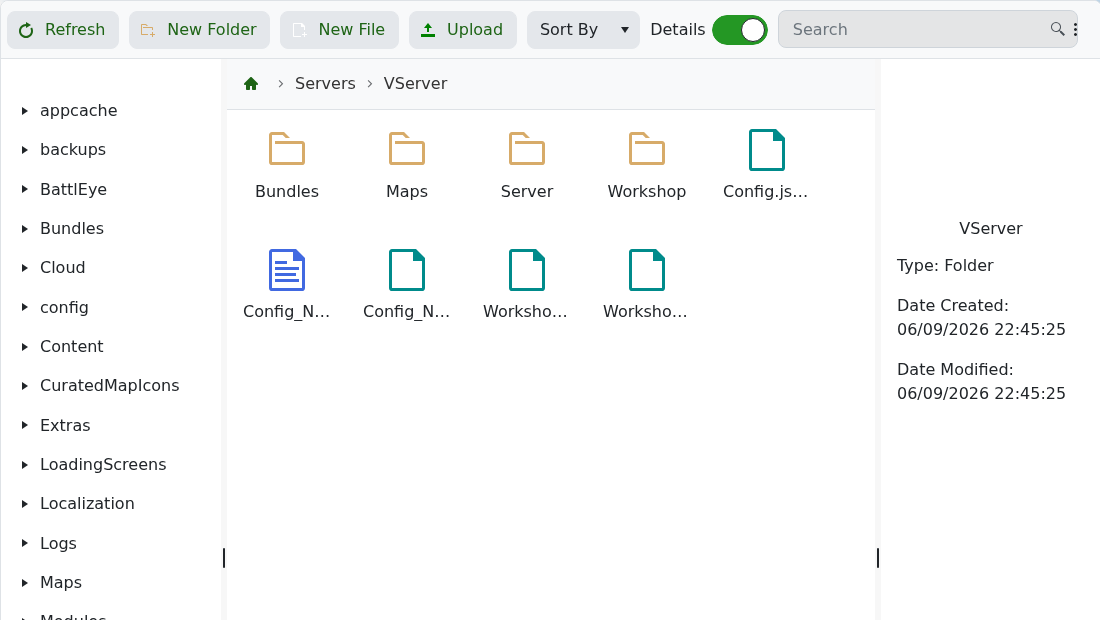
- Open File Manager.
- Open
Servers, then the active server folder. On current LogicServers installs this is commonlyVServer. - Open the Rocket plugin folder created by Rocket Mod. Follow the plugin author's exact path if they provide one.
- Upload the plugin files, usually the compiled plugin file and any required dependency files.
- Start the server.
- Check the console or log viewer for plugin load errors.
Typical plugin files
- Most Rocket plugins include a compiled plugin file and may create a configuration folder after the first successful start.
- Upload only the files required by the plugin author.
- If the plugin includes dependency files, install those dependencies before starting the server.
If a plugin breaks the server
- Stop the server.
- Remove the last plugin you uploaded.
- Start the server and check whether the error is gone.
- Check for missing plugin dependencies before trying again.
- Use Web Console or Log Viewer to identify the plugin name shown in the startup error.
