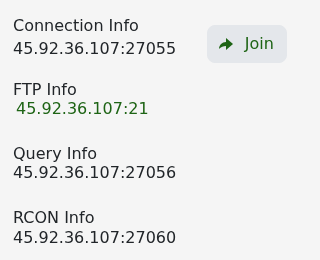
Use the address shown under Connection Info to join your Mordhau server. The panel also shows separate query, FTP and RCON ports, so make sure you copy the game connection address.
- Open your Mordhau server in the control panel.
- Check that its status is Running.
- Copy the address under Connection Info, or click Join to open the Steam connection prompt.
- Open Mordhau and go to the server browser.
- Search for the server name. If you use direct connect, enter the IP and port exactly as shown under Connection Info.
- Enter the server password if one is configured, then join.
If the server does not appear
- Wait a few minutes after starting the server, then refresh the browser.
- Confirm your Mordhau client and the server are fully updated.
- Use the game port from Connection Info, not the FTP, query or RCON port.
- If direct connect also fails, submit a support ticket with the address and exact error shown by Mordhau.
