Upload a Smalland world when you want to continue a local save on your hosted server. On Windows, local worlds are normally stored under %LOCALAPPDATA%\SMALLAND\Saved\SaveGames\Worlds.
- Stop the Smalland server and create a backup.
- Open File Manager.
- Open
Saved/SaveGames/Worlds. TheSaveGamesandWorldsfolders may not appear until the server has created its first world.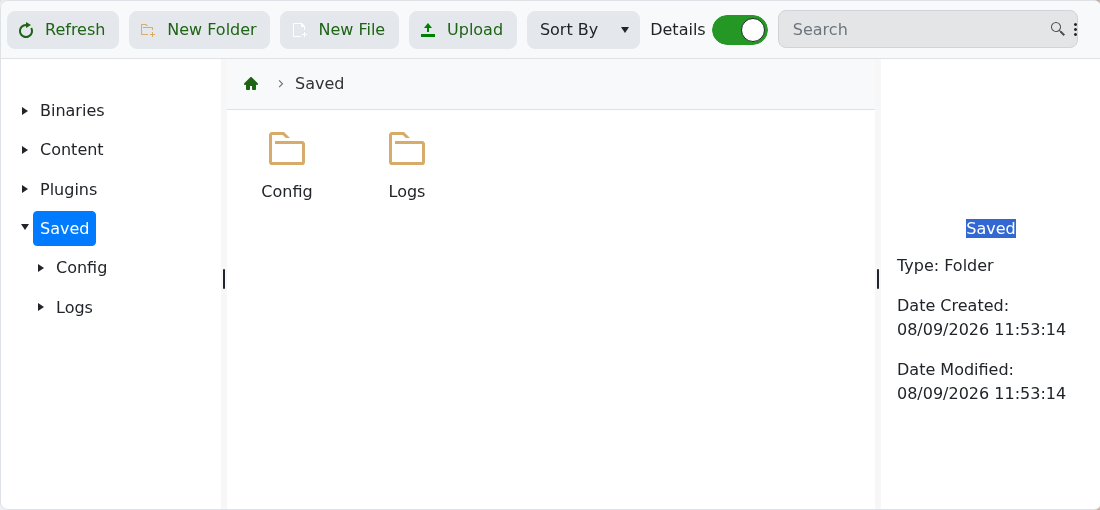
- Upload the required
.wldfile. Use SFTP for large files. - Open Commandline Manager and edit or create a custom command line.
- Set Save Name to the uploaded filename without the
.wldextension. - Save and select the command line, then start the server.
- Join and confirm the uploaded world has loaded.
If the server creates a new world, check the uploaded filename, folder and Save Name value. They must match exactly apart from the .wld extension.
