Steam single-player and player-hosted worlds can be moved to a dedicated server. Saves from PlayStation, Xbox and the Windows/Game Pass version are not supported by the dedicated server.
- On the Windows PC that owns the Steam save, open
%LocalAppData%\AbioticFactor\Saved\SaveGames\<SteamID>\Worlds. - Find the folder for the world you want to upload and make a separate copy of it.
- Stop the server. Connect with FTP and open
Saved/SaveGames/Server/Worlds.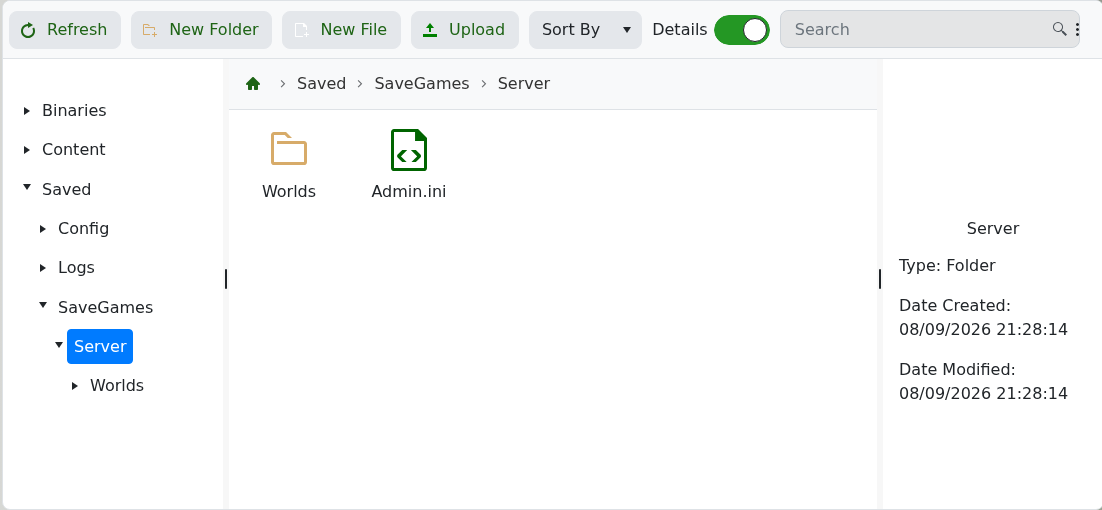
- Rename the uploaded world folder to
Cascade. Move or rename an existingCascadefolder first so it is not overwritten. - Upload the complete folder, then start the server and join once to confirm the correct world loads.
Use an FTP client for the folder transfer; the full connection steps are in How to connect to FTP.
