You can join your Minecraft server using the address shown on your control panel. Make sure the server is online before trying to connect.
If you do not have a server yet, you can order Minecraft server hosting from our Minecraft server hosting page.
Joining your server
- Open your Minecraft server in the control panel and start the server if it is offline.
- Copy the server address from the Console page. You can click the address box to copy it.

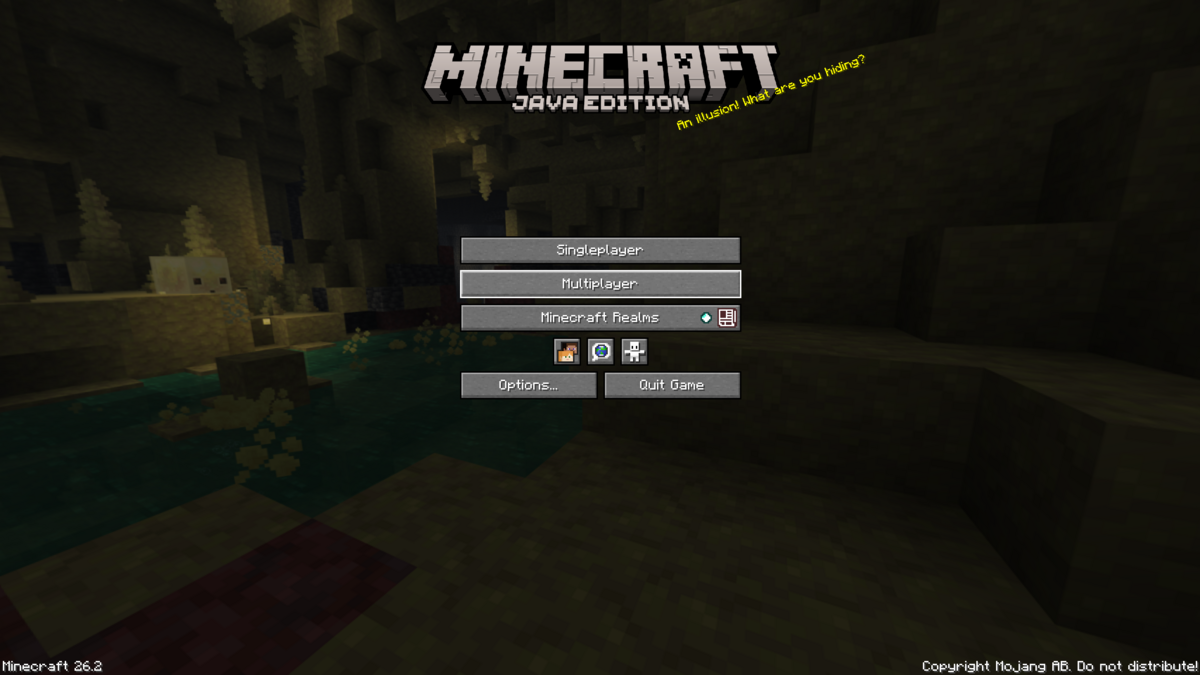
- Open Minecraft Java Edition and click Multiplayer.
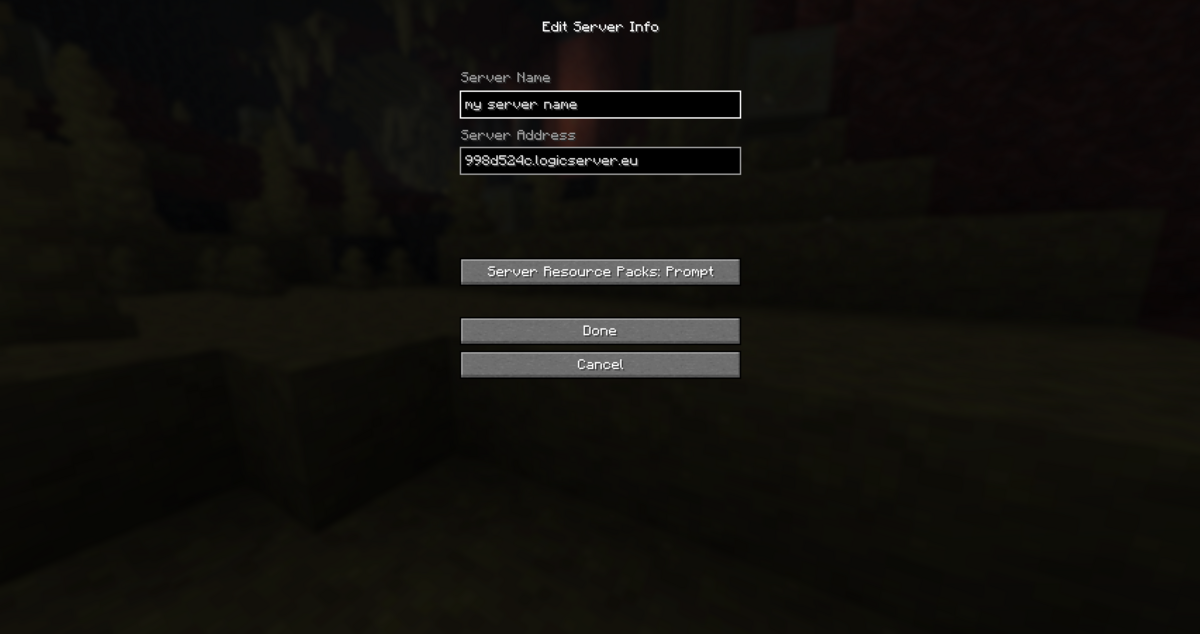
- Click Add Server, enter a server name, paste your server address into the Server Address box, then click Done.
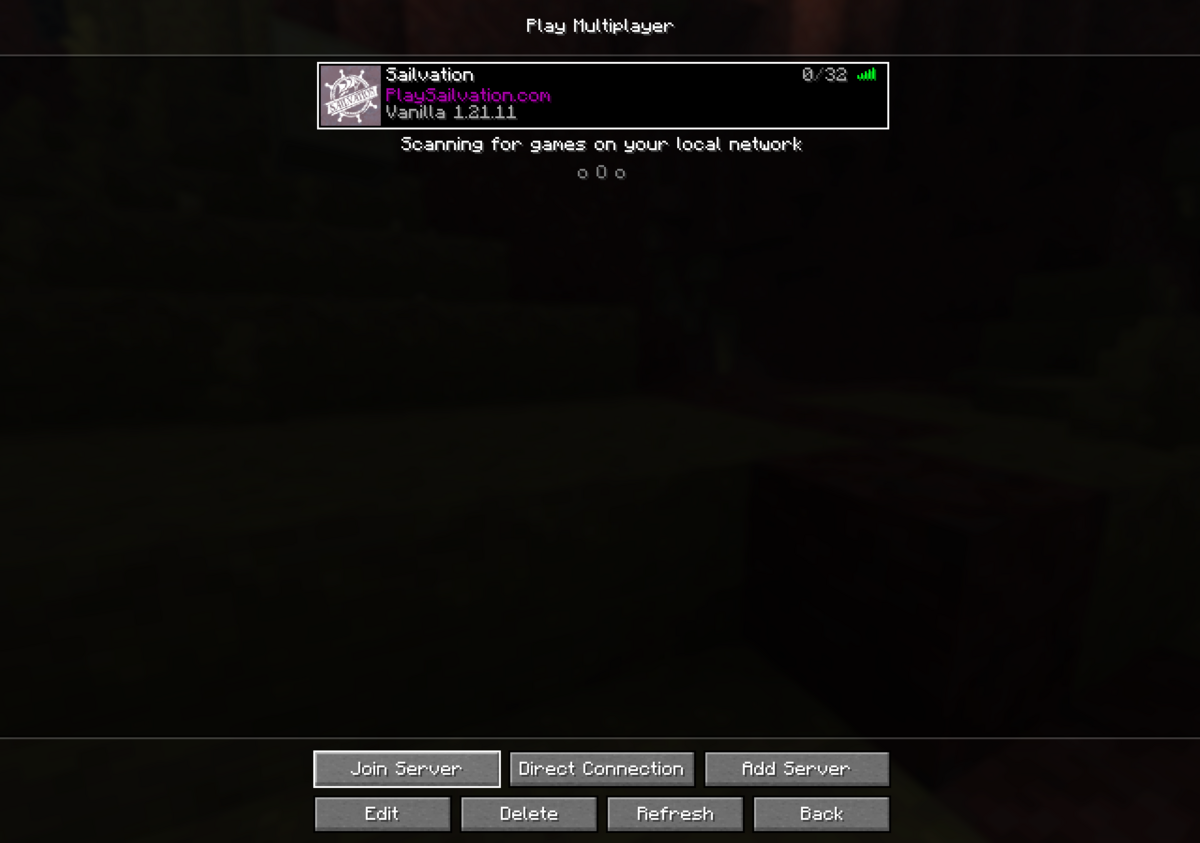
- Select the server from your multiplayer list, then click Join Server.
If your server uses a separate port, enter the address in this format:
server-address:port
If you cannot join, check the console to make sure the server has fully started. If you see an outdated server or incompatible version message, your Minecraft client and server are not running the same version.
