Geyser lets Bedrock Edition players join a Java Edition Minecraft server. Floodgate is normally installed with it so Bedrock players can join without needing a Java Edition account. If you do not already have a server, you can get Minecraft server hosting from our website.
This guide is for plugin-based Minecraft servers, such as Paper, Purpur, or Spigot. If you are running Forge, Fabric, NeoForge, or a modpack, check that your setup supports the Geyser version you want to use before making changes.
Before you start
- Open your Minecraft server in the control panel.
- Stop the server and take a backup before changing files.
- Make sure your server is using Paper, Purpur, Spigot, or another plugin-compatible server type.
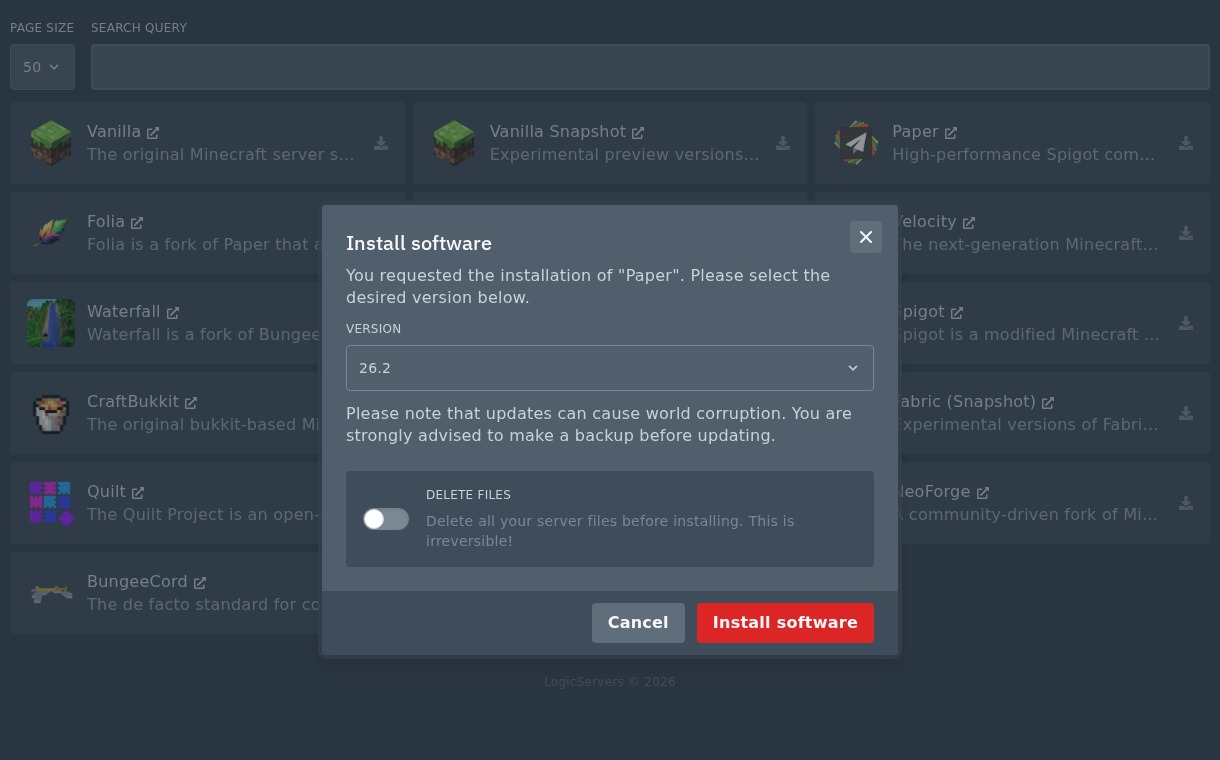
If you need to change the server type, open Versions, choose Paper, then select the Minecraft version you want to install.
Do not check the Delete files box unless you want to wipe the server.
Check your Bedrock port
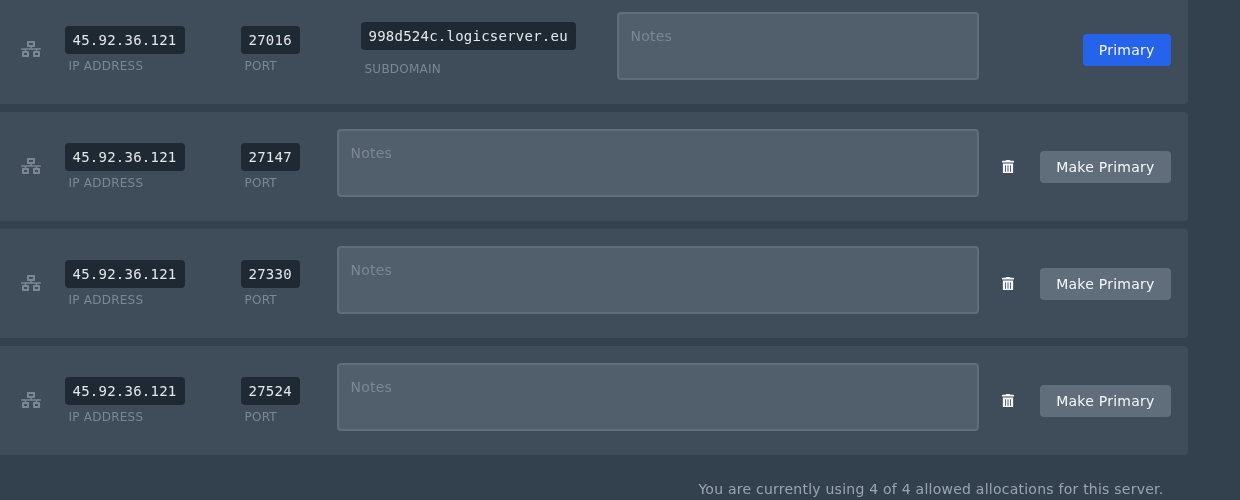
Geyser needs a port for Bedrock players to connect to. Open Network and use one of the extra allocations shown there. Bedrock normally uses UDP port 19132, but on the panel you should use the extra port assigned to your server. If you do not have a spare port, click Create Allocation to add another one.
Download Geyser and Floodgate
- Download the Geyser Spigot plugin from the GeyserMC download page.
- Download the Floodgate Spigot plugin from the same download page.
- You can also use the direct download links for Geyser and Floodgate.
- Keep both files as
.jarfiles. Do not extract them.
Upload the plugin files
- Open Files in the control panel.
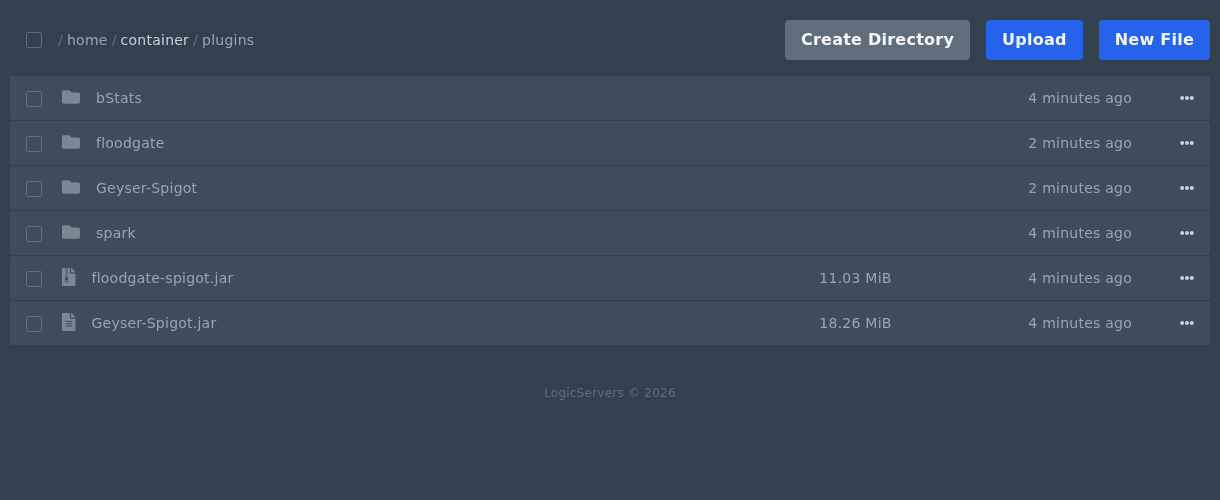
- Open the
pluginsfolder. - Upload
Geyser-Spigot.jarandfloodgate-spigot.jarinto thepluginsfolder.
Generate and edit the config
- Start the server and wait for it to finish loading.
- Stop or restart the server after the Geyser and Floodgate folders have been created.
- Open
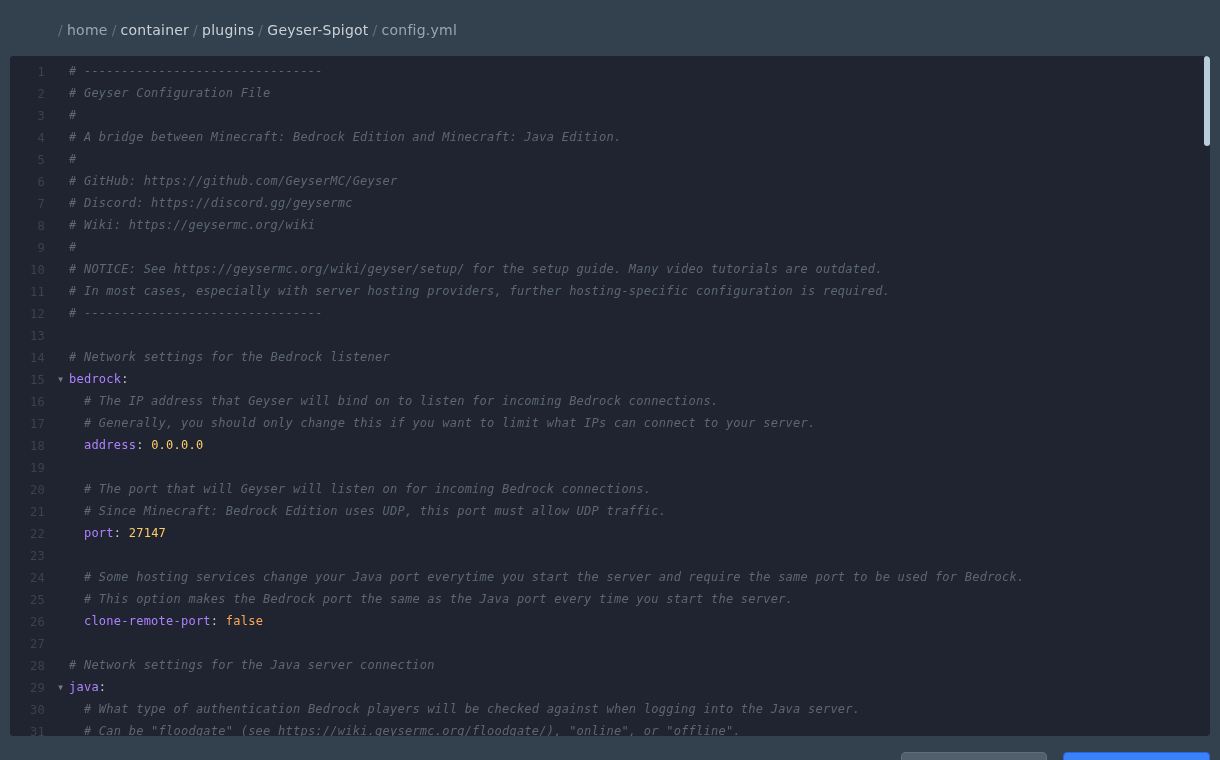
plugins/Geyser-Spigot/config.ymlin the file manager. - Set the Bedrock port to the extra allocation you are using, then set the Java authentication type to Floodgate.
bedrock:
  address: 0.0.0.0
  port: 27147
  clone-remote-port: false

java:
  auth-type: floodgate
Replace 27147 with the extra port you are using from the Network page. This is the port Bedrock players will enter when they add your server.
Start and test the server
- Save the config file.
- Start your server again.
- Check the console for Geyser and Floodgate startup messages.
- Java Edition players should keep using your normal server address or subdomain.
- Bedrock Edition players should use the IP address and port from the extra Network allocation. The panel subdomain only points to your primary allocation.
If Bedrock players cannot connect, check that the port in config.yml is the same extra port shown on the Network page, then check the console for any Geyser or Floodgate errors. If the settings look correct but the Bedrock connection still fails, submit a support ticket so we can check the allocation and port from our side.
