Path of Titans uses Source RCON for remote server commands. It has its own password and the RCON port allocated to your service.
- Open your server page and note the address and port under RCON Info.
- Stop the server, open Configuration Files and choose Text Editor beside
Game.ini. - Find
[SourceRCON]. SetbEnabled=trueand choose your ownPasswordof at least eight characters. Keep the assignedPortvalue matching your service's RCON Info. Use the values shown for your own service.[SourceRCON] bEnabled=true Password=ChooseYourOwnRconPassword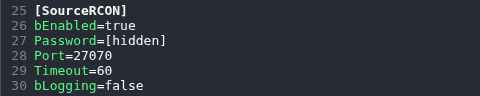
- Click Save & Exit and start the server.
- Connect with a Source RCON client using the service IP, its RCON Info port and that password. For example, mcrcon accepts the following command. Replace every placeholder with your own service details.
mcrcon -H YOUR_SERVER_IP -P YOUR_RCON_PORT -p YOUR_RCON_PASSWORD help - Send
helpto list the available commands. RCON commands are entered without a leading/or#.
Game.ini is also available in File Manager at Saved/Config/WindowsServer/Game.ini, with FTP as an alternative for file transfers.
