Use Unturned's direct-connect menu to join your server with the address from the game control panel. Keep the port exactly as shown under Connection Info.
- Open your Unturned service in the game control panel and copy its full Connection Info address.
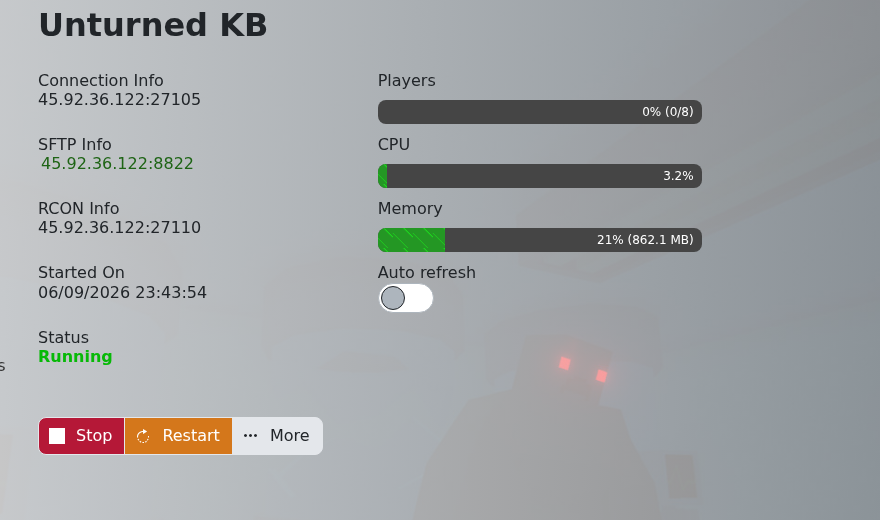
- Start the server if it is stopped. Let it finish loading the level and any Workshop content before trying to join. Update Unturned through Steam if the client and server versions differ.
- Launch Unturned, open Play and choose Connect Directly.
- Paste the complete address into the address field, including the colon and port. Replace this example with your own Connection Info address.
If you enter only the IP address instead, enter the assigned port separately in the port field.203.0.113.10:27105 - Enter the server's join password if one is set. Leave the password field empty for a server without a join password, then connect.
- Check the server details and join the server. Allow the required Workshop downloads to finish.
Unturned's IP-connect menu first queries the server. Its port field therefore uses the query/base port, even though gameplay traffic uses the next port. Use the address supplied under Connection Info unchanged; do not add one to its port. The SFTP/FTP and RCON ports are for other tools.
If the owner gives you a Server Code instead, enter that code in the same direct-connect menu. Codes use Steam's relay and can change after a server restart, so ask for the current code if an old one stops working. A server using Fake IP may also have a different advertised address; use the connection details supplied by its owner.
