Restoring a backup lets you roll the server files back to an earlier backup created from the Ptero panel. Stop the server before restoring so files are not being changed during the restore.
Before restoring
- Create a new backup first if you may need to return to the current files.
- Check the backup date and size so you restore the right copy.
- Remember that Ptero backups cover server files; database-backed games may need separate database handling.
Restore the backup
- Open your server in the Ptero control panel, then open Backups.
- Find the backup you want to restore.
- Click the three-dot menu on the right of the backup, then click Restore.

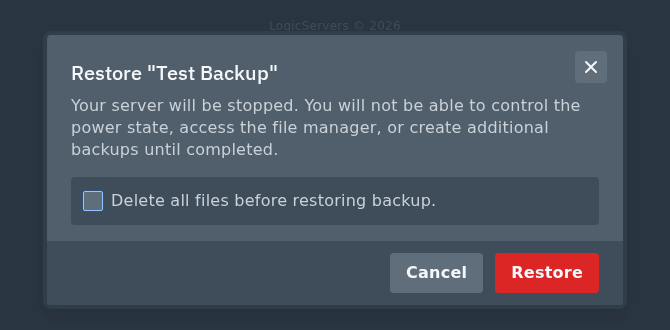
- Read the restore prompt carefully. The server will be stopped and you will not be able to use the file manager or create more backups while the restore is running.
- Only tick Delete all files before restoring backup if you want the current server files removed before the backup is restored.
- Click Restore when you are sure you selected the correct backup.
After restoring
When the restore has finished, start the server again from Console and check that it comes online normally. If the server fails to start, check the console output first, then submit a support ticket with the backup name and error shown.
