Many Minecraft plugins can use MySQL for shared or persistent data. LuckPerms, Plan, CoreProtect, Dynmap, voting plugins, economy plugins, and network-wide setups are common examples.
Create a plugin database
- Open your Minecraft server in the Ptero control panel, then open Databases.
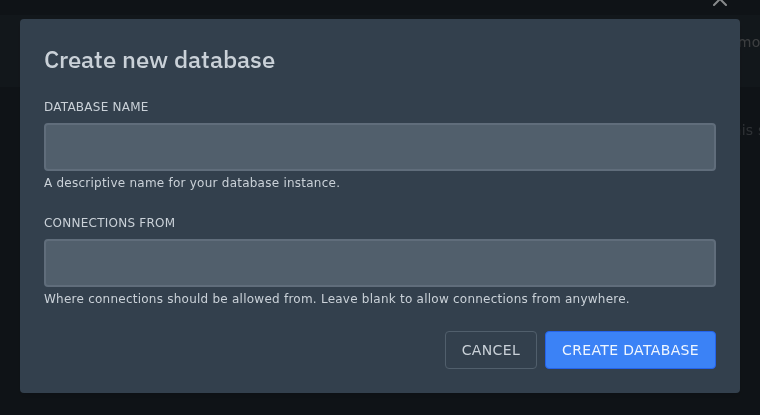
- Click Create Database.

- Use a name that tells you which plugin it belongs to, such as
luckperms,coreprotect, orplan. - For most Minecraft plugins, leave Connections From empty. The panel will show this as
%. If you need to restrict database access, use the IP addresses, hostnames, or wildcard patterns that should be allowed. - Click Create Database.
Use it in your plugin config
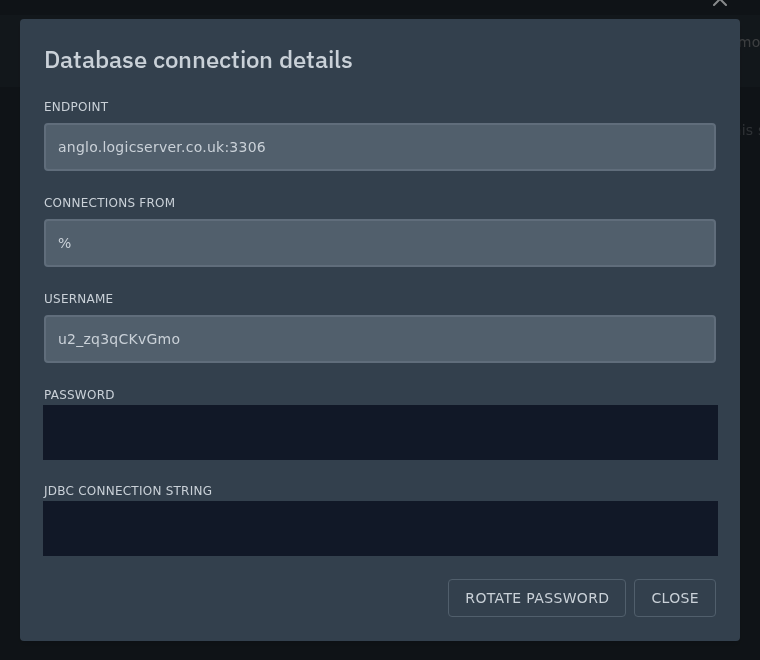
Click the eye icon next to the database to view the endpoint, username, and password.
Minecraft plugins often ask for these values as separate config options. The endpoint is written as host:port, so anglo.logicserver.co.uk:3306 would be split into host anglo.logicserver.co.uk and port 3306.
If you rotate the database password from this screen, update the plugin config before starting the server again. A plugin using the old password will usually show database connection errors in Console.
After editing the plugin config, restart your Minecraft server and check Console for any database connection errors.
