A Minecraft server icon appears next to your server in the multiplayer server list.
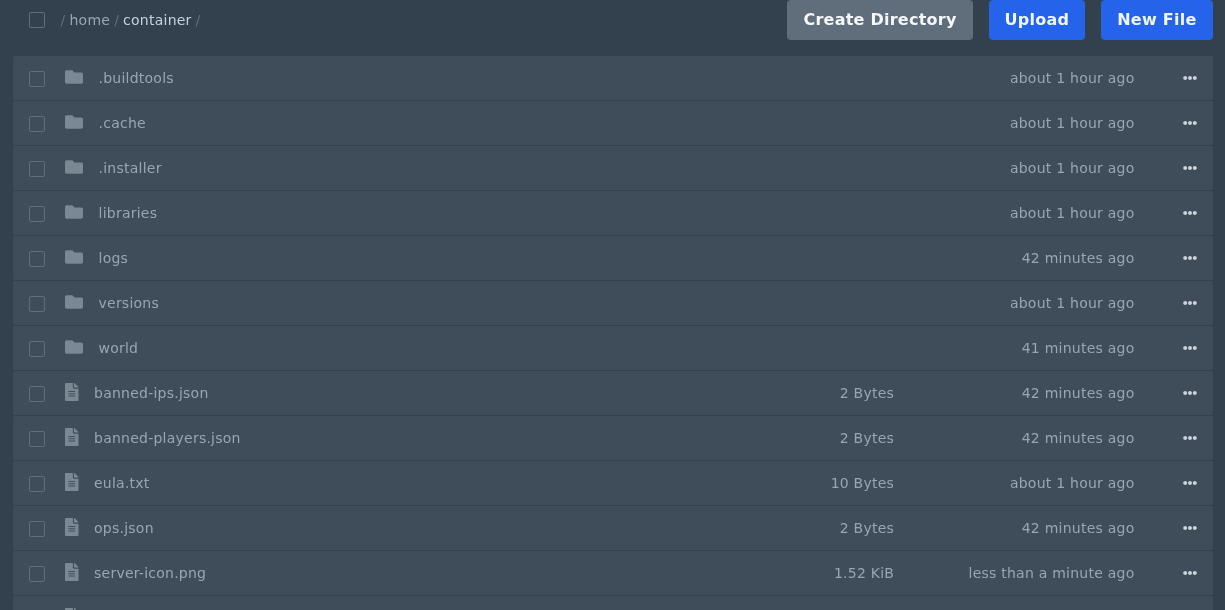
Upload server-icon.png
- Create a PNG image that is exactly
64x64pixels. - Name the file
server-icon.png. The filename must be exact, including the hyphen and lowercase letters. - Open Files in the control panel and upload
server-icon.pngto the main server directory. This is the same folder that containsserver.properties. - Restart the server.
The file must be PNG format and exactly 64x64 pixels. If the icon does not show in the server list, check the filename, file type, and image size, then refresh the server list in Minecraft.
Before changing files
Create a backup before uploading, replacing, or converting server files. Keep filenames and folder names exactly as the game expects, including capitalisation where relevant.
If something does not work
Stop the server, check the file path, and review the console or log output. If you need help, submit a support ticket with the file path you changed and any error shown by the server.
