Your Rust server description, website, tags, and banner help players recognise the server in the browser. These values are exposed in the server.cfg Config Editor.
- Open your Rust server in the control panel.
- Click Configuration Files.
- Find
server.cfg, then click Config Editor. - Edit Server Header Image, Server Description, Server Tags, Website URL, or Website as needed.
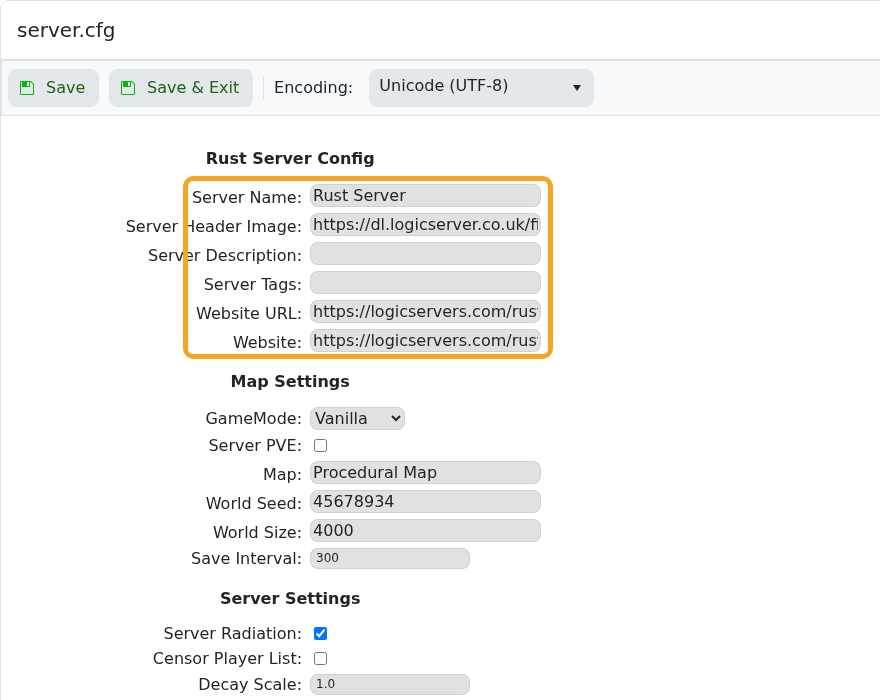
- Use a direct image URL for Server Header Image.
- Click Save & Exit.
- Restart the server so the updated browser details are applied.
The Rust browser may cache old server details briefly. Restart the server, then allow a few minutes for the listing to refresh.
After saving
Restart the server after changing public listing details. Some game server browsers cache names, descriptions, and banners, so the old value may show for a short time even after the server has restarted.
If the old value still shows
Check that the new value is still saved in the control panel, then refresh the in-game server browser or try direct connect. Avoid special characters until you have confirmed the basic change works.
