Project Zomboid server settings are split across servertest.ini for server options and servertest_SandboxVars.lua for world and sandbox options. Both are edited from Configuration Files.
- Open your Project Zomboid server in the control panel.
- Click Configuration Files.
- Open
servertest.iniwith Text Editor for server name, password, public listing, Workshop IDs, and mod IDs. - Open
servertest_SandboxVars.luawith Text Editor for sandbox/world settings.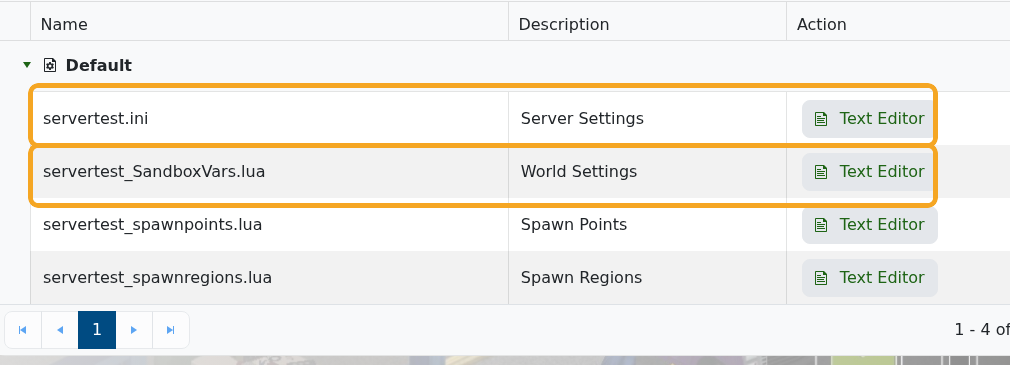
- For common server-browser and player settings, edit
servertest.inivalues such asPublic,PublicName,PublicDescription, andMaxPlayers.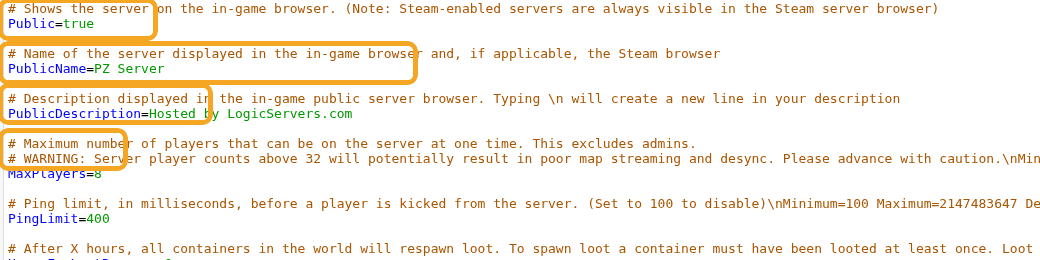
- Click Save & Exit after making changes.
- Restart the server so Project Zomboid loads the updated settings.
Common Settings
| Setting | File | What it controls |
|---|---|---|
PublicName | servertest.ini | The server name shown in the in-game server browser. |
PublicDescription | servertest.ini | The description shown in the public server browser. |
Password | servertest.ini | The password players must enter before joining. Leave blank for no password. |
Public | servertest.ini | Controls whether the server is listed publicly. |
MaxPlayers | servertest.ini | The maximum number of players allowed online at once. |
PVP | servertest.ini | Enables or disables player-versus-player combat rules. |
PauseEmpty | servertest.ini | Pauses game time when nobody is online. |
Mods | servertest.ini | Project Zomboid Mod IDs to load, separated by semicolons. |
WorkshopItems | servertest.ini | Steam Workshop IDs to download, separated by semicolons. |
Map | servertest.ini | The map folder list the server loads. |
ZombieConfig values | servertest_SandboxVars.lua | Zombie population, rally groups, respawn behaviour, and related world difficulty options. |
StartMonth / StartDay | servertest_SandboxVars.lua | The world start date used for new saves. |
If the server fails to start after a config edit, reopen the file and check for missing commas, quotes, or changed setting names. You can also check Web Console or submit a support ticket with the latest console output.
