Project Zomboid Build 42 now includes multiplayer support. You can install it on your Project Zomboid server using our one click tools. Remember that Build 42 is still classed as an unstable branch and may contain bugs/issues, if you run in to any simply submit a ticket and we'll try and resolve it. If we cannot then you might need to submit a bug report to the developers.
1. Stop & Backup your server
- On our control panel, click on the backup icon for your PZ server.
- Click Stop and wait until the status shows as stopped.
2. Reinstall (highly recommended)
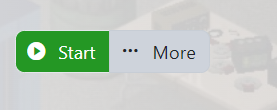
- On the server page, click More next to the start button, then Reinstall.
- This will completely wipe and reinstall your server, so if you want to keep your save you may want to download it.

3. Install the Build 42 branch from the Mod Manager
After the reinstall has finished and the server is still stopped:
- Open the Mod Manager in your control panel.
- Click stall on the right of the option called B42 Unstable Branch.

4. Switch your PZ version on steam
Your game client must match the server version.
- Open Steam and go to your Library.
- Right click Project Zomboid and select Properties.
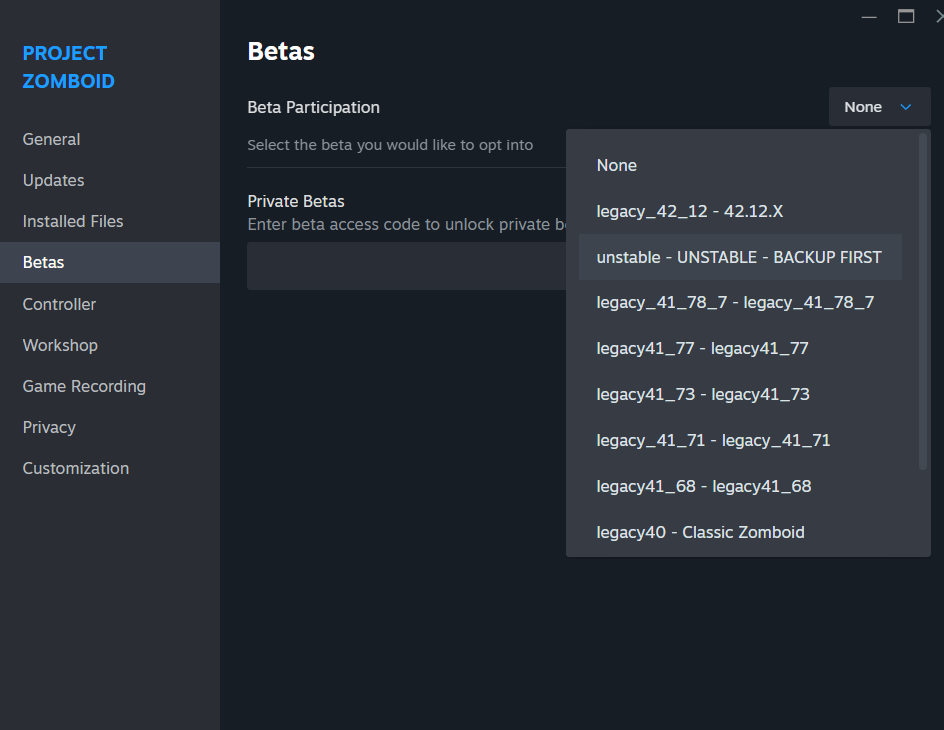
- Click the Betas tab.
- Select the Unstable branch from the dropdown.
- Let Steam download and install the update.
5. Start the server and join
- Click start on the control panel for your PZ server.
- Wait until the status shows that the server is online.
- Start Project Zomboid on your PC and join your server as normal. Multiplayer will now run on Build 42!
Going back to the stable version
- In the control panel, stop the server and run More then Reinstall using the standard stable template.
- In Steam, switch the game back to the default branch in the Betas tab.
- Restore a backup if you want to return to your previous stable world.
Note: Worlds started on Build 42 may not be fully compatible with older versions of the game. For important saves we recommend keeping separate backups.
