Low disk space can stop Windows updates, game server updates, saves, logs, and backups from working correctly. Check disk space before installing large game servers or copying world files.
- Connect to the Windows VPS with Remote Desktop.
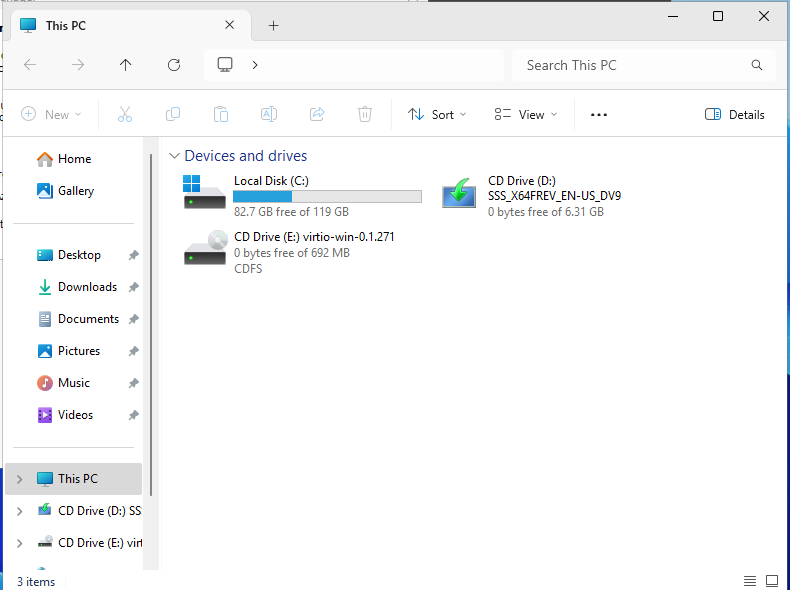
- Open File Explorer.
- Click This PC.
- Check the free space shown under the main drive, usually C:.
Check with PowerShell
Get-PSDrive C
For a more detailed view:
Get-CimInstance Win32_LogicalDisk | Select-Object DeviceID,Size,FreeSpace
What to clean first
| Location | What it may contain |
|---|---|
C:\Users\Administrator\Downloads | Downloaded installers and zip files. |
C:\Servers | Game server installs, logs, saves, and old test folders. |
C:\Backups | Manual backups that may be safe to move off the VPS. |
| Recycle Bin | Deleted files still taking disk space. |
Before deleting files
If the VPS hosts a game server, stop the game server first before deleting logs, saves, backups, or old installs. Keep a copy of any world or save folder you may need to restore later.
Emptying space is only useful if the files are no longer needed. If the folder contains a game world, database, or player data, move a copy elsewhere before deleting anything from the VPS.
Do not delete files you do not recognise from C:\Windows. If the drive is nearly full after removing old installers, logs, and unused server folders, upgrade the VPS disk or move backups elsewhere.
