Remote Desktop is the normal way to manage a Windows VPS. It opens a desktop session so you can use File Explorer, PowerShell, Task Manager, Windows Update, and installed applications.
You need the VPS IP address, Windows username, and Windows password. The username is usually Administrator unless you created another Windows user.
Find the VPS IP address
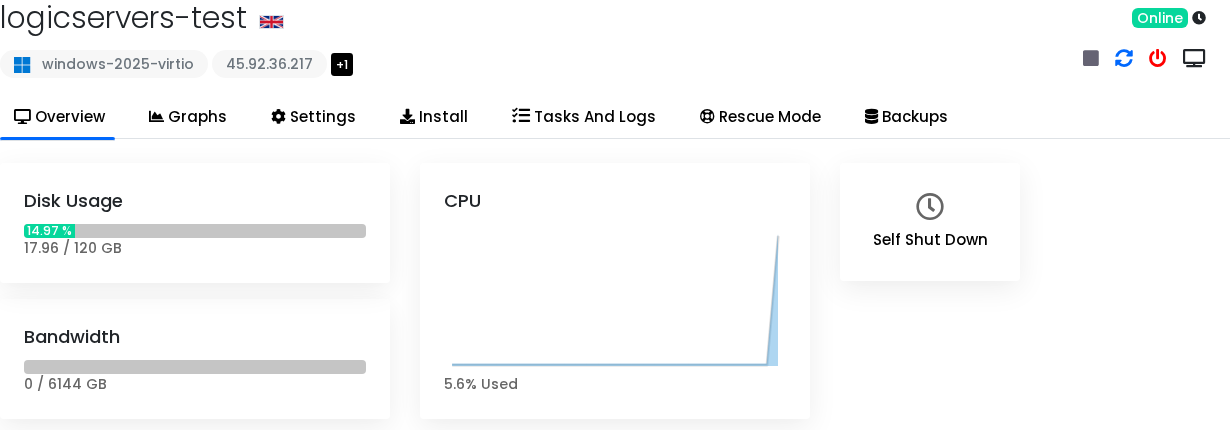
- Open your VPS service from the client area.
- Open the VPS control panel.
- Copy the public IP address from the VPS overview.
Connect from Windows
- Open the Start menu on your own PC.
- Search for Remote Desktop Connection.
- Enter the VPS IP address.
- Click Connect.
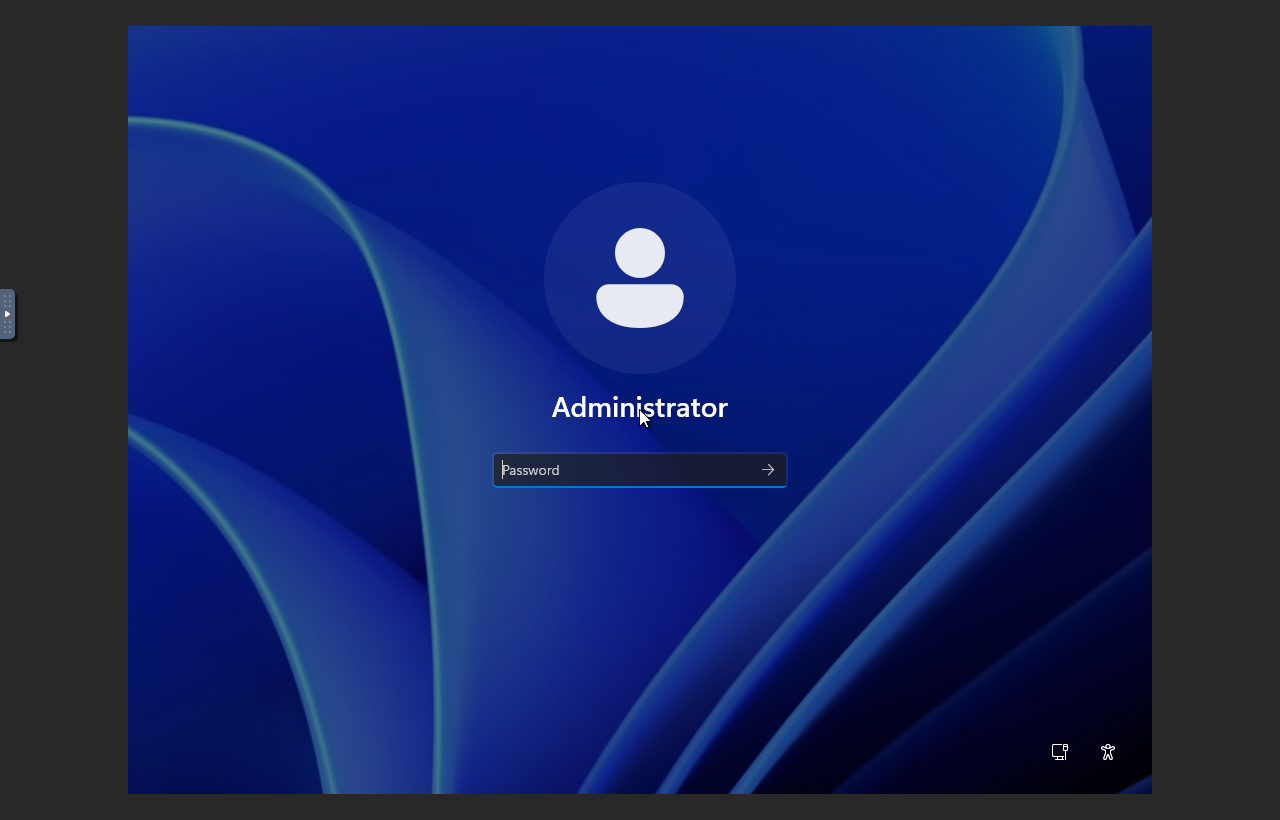
- Enter the Windows username and password.
Connect from macOS
- Install Microsoft Remote Desktop from the App Store.
- Add a new PC.
- Enter the VPS IP address as the PC name.
- Save and open the connection.
- Enter the Windows username and password.
Connect from Linux
Use an RDP client such as Remmina. Create a new RDP connection, enter the VPS IP address, username, and password, then connect.
If Remote Desktop does not connect
| Problem | What to check |
|---|---|
| Connection times out | The VPS may still be booting, the IP may be wrong, or RDP may be blocked by firewall. |
| Password rejected | Check the Windows password and username. Passwords are case-sensitive. |
| Black screen or stuck login | Wait a minute, then try the VPS console to see what Windows is doing. |
| RDP disabled or broken | Use VNC/console access to repair Windows or change the password. |
For console recovery, use How to use the VPS console or VNC.
