Windows services run in the background and are often used by databases, web servers, monitoring tools, and some game-server helpers. Restarting a service can apply config changes or recover a stuck process.
- Connect to the Windows VPS with Remote Desktop.
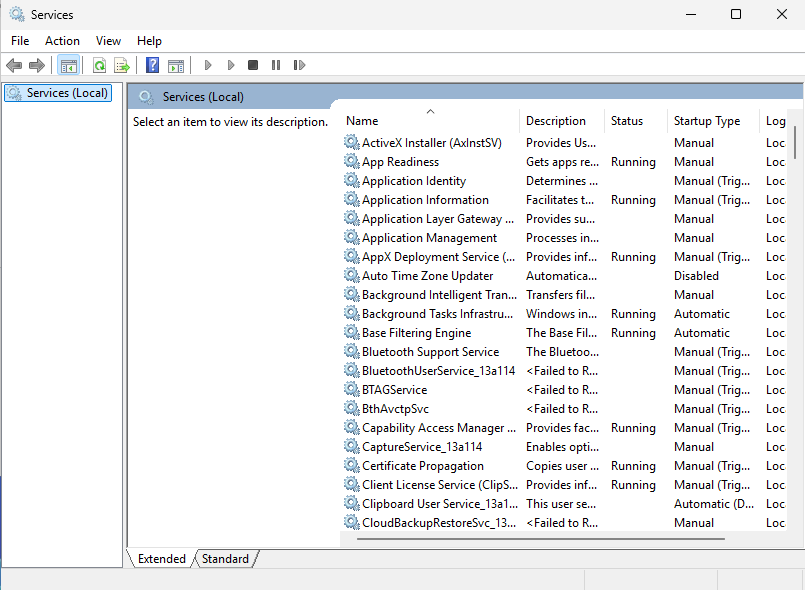
- Open the Start menu and search for Services.
- Find the service you want to restart.
- Right-click it and choose Restart.
- Check the application or game server after the restart.
You can also restart a service from an Administrator PowerShell window:
Restart-Service -Name "ServiceName"
List services and find the exact name with:
Get-Service
Do not restart services you do not recognise on a live VPS. If the VPS hosts customers or players, schedule restarts during quiet periods.
Common service actions
| Action | Use it when |
|---|---|
| Start | The service is stopped and should be running. |
| Stop | You need to shut the service down before updates, file edits, or backups. |
| Restart | You changed config and need the service to reload. |
| Properties | You need to check startup type, service name, or logon account. |
For game servers, prefer the game's own save or stop command before stopping any Windows service that controls it.
