Checking listening ports tells you whether software is actually waiting for connections on your Windows VPS. Use this when a game server, web server, RCON tool, or database is not reachable.
If the application is not listening locally, opening a firewall rule will not make it reachable. Start the game server or application first, then check the port.
- Connect to the Windows VPS with Remote Desktop.
- Open PowerShell as Administrator.
- List listening TCP ports:
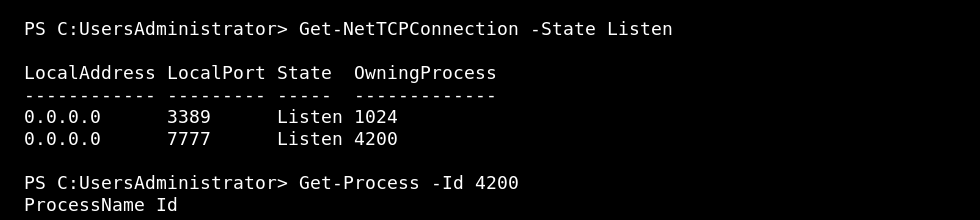
Get-NetTCPConnection -State Listen
- Filter for a specific TCP port:
Get-NetTCPConnection -LocalPort 7777
- Show the process that owns a listening TCP port:
$connection = Get-NetTCPConnection -LocalPort 7777 -State Listen
Get-Process -Id $connection.OwningProcess
- For UDP game ports, check UDP endpoints:
Get-NetUDPEndpoint -LocalPort 7777
If the port is listening but unreachable
- Check Windows Firewall allows the port and protocol.
- Check any VPS panel firewall rules.
- Confirm the game uses the port you are testing.
- For UDP game ports, test through the game client where possible.
