Adding a separate Windows user is useful when more than one person needs access to the VPS. Do not share the Administrator password unless the other person genuinely needs full control.
Create a normal user first, then only add administrator permissions if that person needs to install software, change firewall rules, or manage services.
Add a local user with PowerShell
- Connect to the Windows VPS with Remote Desktop.
- Open PowerShell as Administrator.
- Create the user:
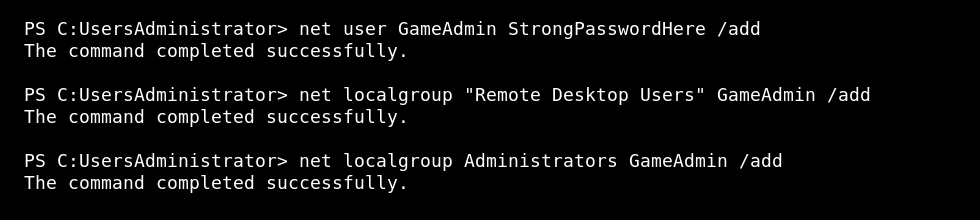
net user GameAdmin StrongPasswordHere /add
Allow Remote Desktop login
net localgroup "Remote Desktop Users" GameAdmin /add
Make the user an administrator
Only do this if the user needs full admin rights:
net localgroup Administrators GameAdmin /add
Test the new user
- Open a new Remote Desktop connection.
- Sign in as the new user.
- Confirm the user can access only what they need.
Which group should you use?
| Group | Use it when |
|---|---|
| Remote Desktop Users | The user only needs to sign in by RDP. |
| Administrators | The user needs full control over software, services, firewall, and system settings. |
Most extra users should not be administrators unless they are actively managing the VPS.
Remove a user
net user GameAdmin /delete
Use strong passwords and remove accounts that are no longer needed.
