Some Windows game servers need supporting runtime packages before they start correctly. Common examples are Microsoft Visual C++ Redistributables and DirectX runtime files.
Chocolatey can make common Windows runtime installs faster, but you should still follow the game documentation when a game lists specific dependencies.
- Connect to the Windows VPS with Remote Desktop.
- Open PowerShell as Administrator.
- Install Chocolatey using the current command from the official Chocolatey setup page: Chocolatey setup documentation.
- Close and reopen PowerShell, then check Chocolatey works:
choco -v
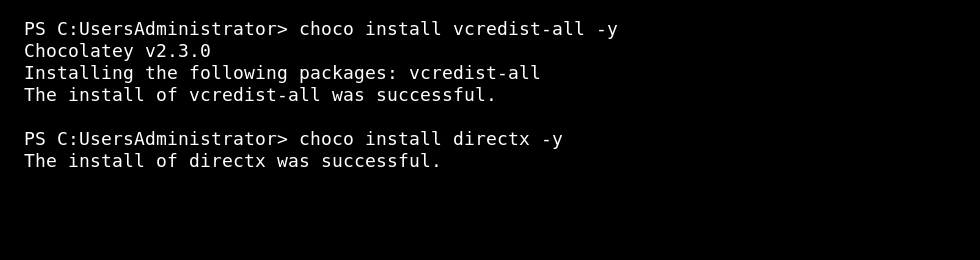
- Install the common Visual C++ Redistributables and DirectX runtime packages:
choco install vcredist-all -y
choco install directx -y
- Restart the VPS after installing runtime packages.
- Start the game server again and check its console or log output.
If a game provides its own dependency installer, use the game's installer or documentation first. Do not install random runtime bundles from unofficial download sites.
