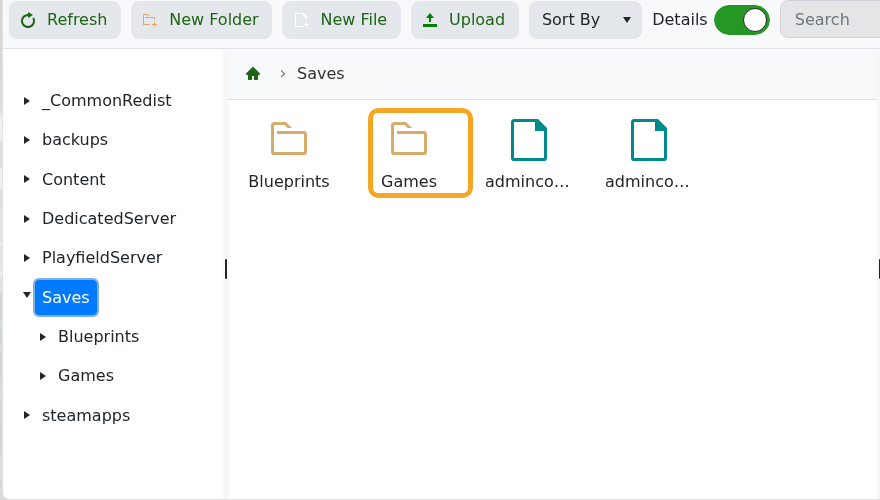
You can upload an existing Empyrion save by placing the save folder inside Saves/Games and then setting GameName in server.yaml to match that folder name. The folder name and GameName must match exactly.

Upload Your Save

  1. Take a backup first: How to backup your Empyrion server save.
  2. Stop the server.
  3. Open File Manager.
  4. Go to Saves/Games.
  5. Upload your save folder into Games. If you upload a ZIP file, extract it so the final path looks like Saves/Games/YourSaveName.

    Empyrion File Manager showing Saves folder

Set The Active Save Name

  1. Click Configuration Files.
  2. Open server.yaml with Text Editor.
  3. Find the GameConfig section.
  4. Set GameName to the folder name you uploaded.
  5. Click Save & Exit, then start the server.
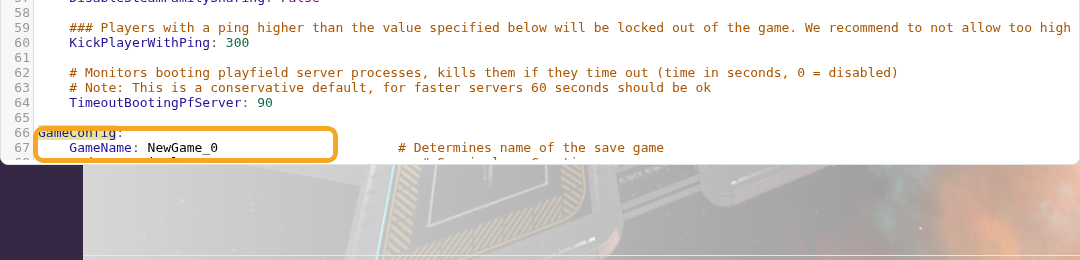
    Empyrion server.yaml showing GameName for the active save

GameConfig:
  GameName: YourSaveName
  Mode: Survival

If the server creates a new empty world, the uploaded folder name and GameName do not match, or the save folder was uploaded inside an extra nested folder. Stop the server, correct the path, then start again.

  • 21 Uživatelům pomohlo
Byla tato odpověď nápomocná?

Související články

How to delete a players data in Empyrion

Delete Empyrion player data when you need to reset one player without wiping the whole world....

How to restore a backup for your Empyrion server

Restore an Empyrion backup when you need to roll the server back after a bad update, unwanted...

How to backup your Empyrion server save

Create an Empyrion backup before updating, restoring files, changing scenarios, uploading saves,...

How to create a custom admin file for your Empyrion server

Empyrion admin permissions are controlled in adminconfig.yaml. Add a player SteamID64 under...

How to add Reforged Eden II to Empyrion server

Reforged Eden II is the current Reforged Eden scenario path for Empyrion servers. It is...