Whitelisting lets you control exactly who can join your Rust server. Rust does not provide a normal built-in whitelist switch, so install uMod first, then install a whitelist plugin such as Whitelist from the Rust Plugins page and manage players by SteamID64.
- Install uMod first: How to Install UMod on Your Rust Server.
- Open Rust Plugins from the left side menu.
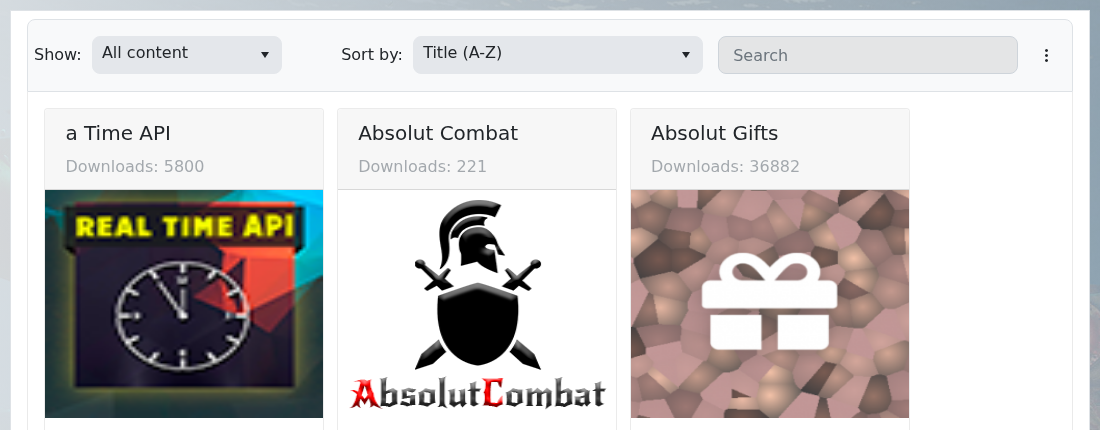
- Search for
Whitelistand install the Whitelist plugin.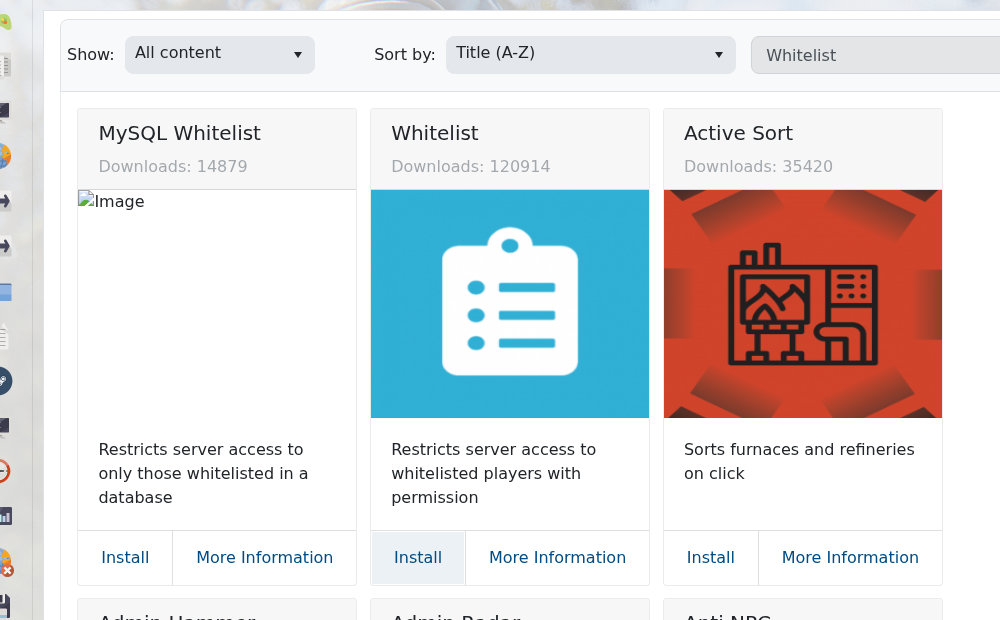
- Restart the server once so the plugin loads.
- Find each player's SteamID64 using steamid.io.
- Open Web Console or RCON.
- Add a player to the whitelist by granting the whitelist permission to their SteamID64:
oxide.grant user STEAMID64 whitelist.allow
- Remove a player from the whitelist by revoking the same permission:
oxide.revoke user STEAMID64 whitelist.allow
- Check what permissions a player has with:
oxide.show user STEAMID64
- If the plugin does not pick up the change immediately, reload it with:
oxide.reload Whitelist
Use the exact SteamID64, not the player name. If the plugin page lists a different permission name, use the permission shown on that plugin page in place of whitelist.allow.
