BlueMap turns your Minecraft world into a 3D map that players can open in a browser. It runs its own web server, so it needs an extra TCP port alongside your Minecraft port.
Install it from the panel
On a supported release, the panel can install BlueMap and set its web port for you.
- Open your Minecraft server in the control panel, take a backup and stop it.
- Open Plugins, or Mods on a modded server. Keep Versions on Current version, search for BlueMap and click its install icon. Choose a release for your server software and Minecraft version.
- Leave Configure automatically ticked. Under Port, choose Assign a new port or an unused secondary allocation. Tick the box allowing BlueMap to download the Minecraft resources it needs from Mojang. Do not use your main Minecraft port or a port already used by another plugin.
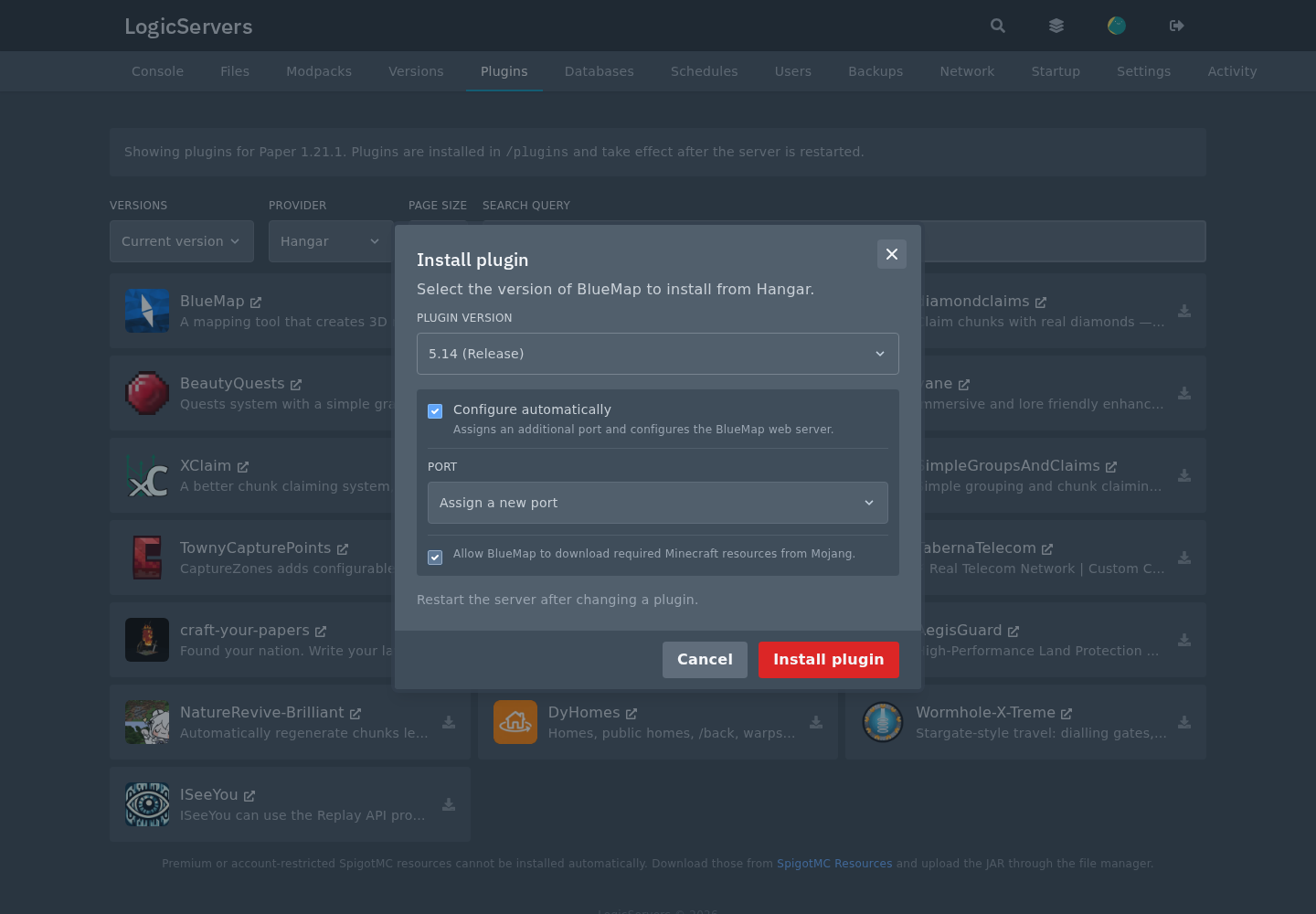
- Click Install plugin or Install mod. Once it finishes, start the server and use the web address described below.
If no suitable download or automatic configuration option is offered, use the manual method below. On an installation tracked by the panel, the Change version icon beside its installed JAR opens the configuration options again.
Upload and configure BlueMap yourself
- Download the build for your server from BlueMap's installation page. Check its Java requirement too. A Paper JAR and a Fabric JAR are different downloads.
- With the server stopped, open Files in the panel and open
plugins. Drag the JAR into File Manager, or use SFTP to upload it to the same folder. On Fabric, Forge or NeoForge, usemodsinstead and install any dependencies listed for that build. Leave the JAR intact. - Start the server once to generate BlueMap's files, then stop it before editing them. Open Network and create an extra allocation in Network and note its port number.
- In Files, open
plugins/BlueMap/core.confon a plugin server, orconfig/bluemap/core.confon a modded or Sponge server. Setaccept-downloadtotrueif you agree to the required Mojang resource download.accept-download: true - Open
webserver.confin the same folder and setportto your extra Network allocation. For an example allocation of25600, that line would beport: 25600
Change the existing setting rather than replacing the whole file with this extract. Save your changes and start the server.
Open the map
Wait for the console to report that BlueMap has loaded and its web server has started. Open http://YOUR_SERVER_IP:YOUR_MAP_PORT/ in your browser, using the IP and extra port from Network. This is an HTTP address unless you've separately set up HTTPS through a proxy.
The first render can take a while. Use /bluemap in game to check progress. BlueMap renders world data that already exists; unexplored terrain won't appear simply because the web page is open.
