Open your server in the control panel, then go to Settings. Under SFTP Details, the panel will show the Server Address and Username you need to use, the password is the same as the one you use to login to our control panel.
The Server Address includes the SFTP host and port. If your FTP client asks for a port separately, you do not enter the sftp:// part, then you split it at the colon. In the image below the IP and Port separated becomes IP/Hostname anglo.logicservers.co.uk and port 8022.
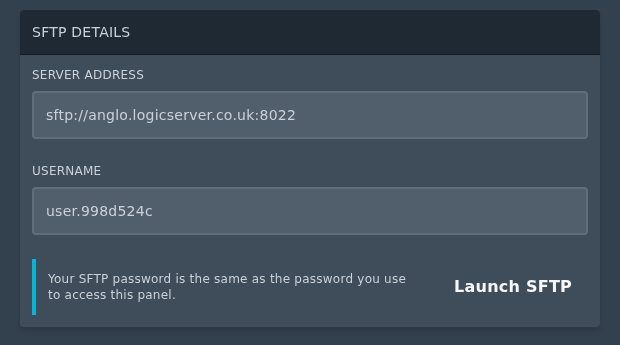
Once you have the Server Address and Username, you can then follow this guide to connect with FileZilla: How to connect to SFTP using FileZilla or use an SFTP client of your choice.
Before changing files
Create a backup before uploading, replacing, or converting server files. Keep filenames and folder names exactly as the game expects, including capitalisation where relevant.
If something does not work
Stop the server, check the file path, and review the console or log output. If you need help, submit a support ticket with the file path you changed and any error shown by the server.
