Tebex connects your Minecraft server to a store so purchases can deliver commands, ranks or items. You can start a new store setup through the panel, or connect the current plugin to an existing store yourself.
Install Tebex from the panel
- Take a backup, stop the server and open Plugins, or Mods for a supported mod build. Keep Versions on Current version and search for Tebex.
- Open its installer and choose a release for your Minecraft version and server software. Configure automatically requests a store setup link by email for the server owner's panel account. Leave it selected if you want to use that new-store setup.
If you already have a store, untick Configure automatically and connect it with your existing store's secret key using the steps below.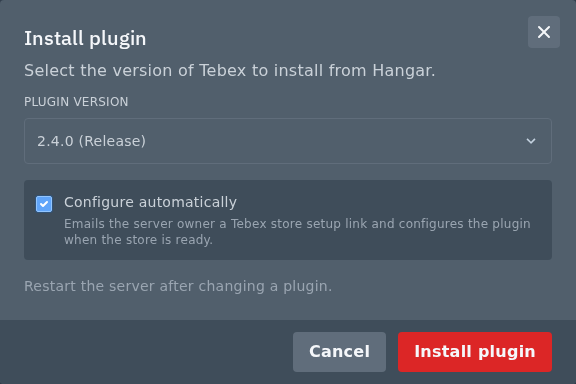
- Click Install plugin or Install mod. For automatic setup, follow the email to finish creating the store. The panel configures the connection when Tebex returns the server details; the JAR being installed doesn't mean that the store is ready.
If Tebex isn't listed for your software, download and upload the matching build manually.
Upload the plugin and connect your store
- Choose the supported build from Tebex's Minecraft installation guide. For a new manual installation, use the current Tebex plugin rather than the old BuycraftX download.
- Stop the server and open Files in the panel and open
plugins. Drag the JAR into File Manager, or use SFTP to upload it to the same folder. For a supported Fabric or other mod build, usemodsinstead. Remove the older Tebex/BuycraftX JAR when replacing it so two store plugins don't run together. Start the server once the upload finishes.
- Sign in to your Tebex game server integrations. Add or select the Minecraft server and copy its secret key. Keep the key private.
- Open Console in the Minecraft panel. For the current Tebex 2.4 plugin shown here, enter the following command, replacing the example text with your key. Console commands don't need a leading slash.
BuycraftX uses the oldertebex secret YOUR_SECRET_KEYbuycraft secretcommand and different configuration files; don't mix instructions from the two plugins. - Run the plugin's information command and check that it reports your intended store.
tebex info
Connecting the plugin doesn't create your packages or delivery commands. Configure those in Tebex and use its test tools to check the commands before offering them to players.
